Touch-Spiel
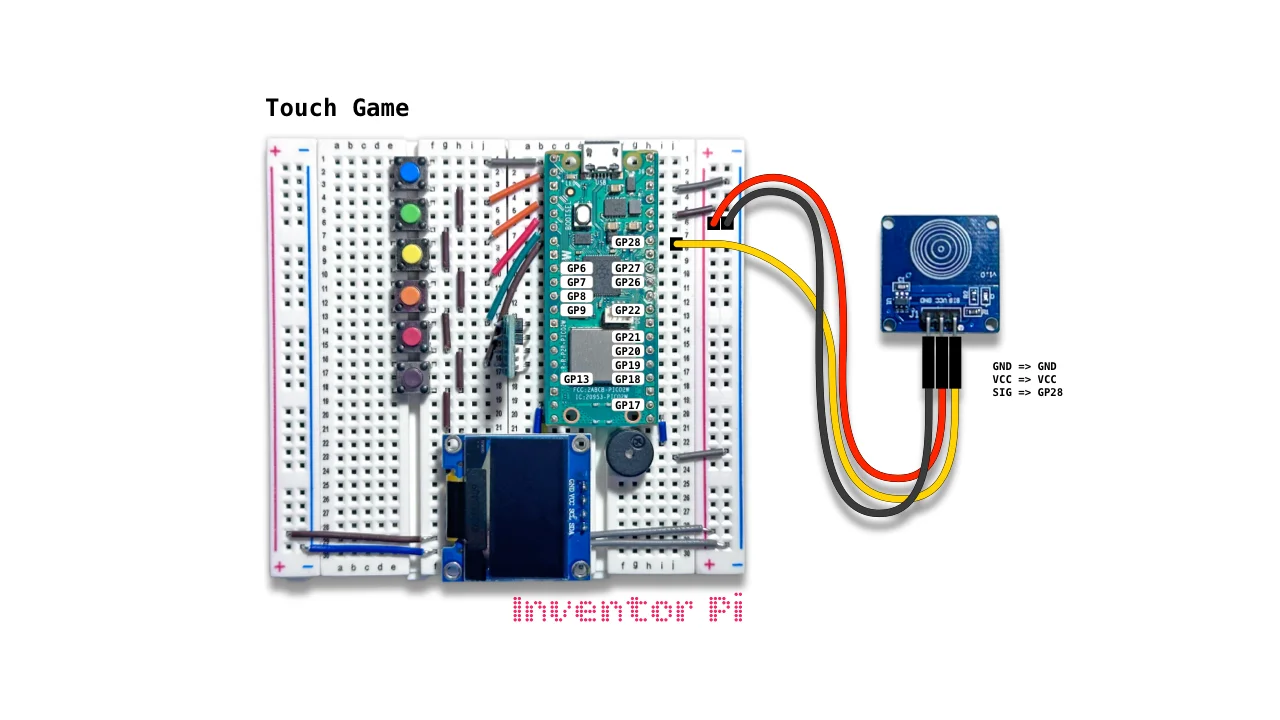
Ein MicroPython-Codebeispiel läuft auf einem Raspberry Pi Pico 2 W Mikrocontroller auf einem Steckbrett mit einem kapazitiven Berührungssensormodul, einem passiven Piezo-Summer und einem OLED-Displaymodul (SSD1306) verbunden um ein Reaktionszeittestspiel zu erstellen und um zu lernen, Formen auf dem OLED-Display zu zeichnen
Ein kapazitiver Berührungssensor erkennt eine Berührung, indem er die Veränderung der elektrischen Ladung misst, wenn sich ein menschlicher Finger nähert. Der menschliche Körper besteht größtenteils aus Wasser und Salz, wodurch er ein natürlicher Leiter von Elektrizität ist. Es wird in Smartphones für die Multi-Touch-Navigation und Gestenerkennung verwendet. In diesem Skript erstellen wir ein kurzes Spiel, um Ihre Reaktionszeit zu testen und gleichzeitig zu lernen, wie man Formen auf dem OLED-Bildschirm zeichnet.
Um den Sensor auszulesen, führen wir Folgendes aus:
1
2
3
4
5
6
7
8
9
10

from time import sleep
from machine import Pin

touch_sensor = Pin(28, Pin.IN)

while True:
    if touch_sensor.value() == 1:
        print("Touch Detected")
        while touch_sensor.value() == 1: pass # wait until touch is not detected
    print("No Touch")
In diesem Spiel lernen wir, auf dem OLED-Bildschirm zu zeichnen, indem wir oled.display.ellipse verwenden, um einen Kreis zu zeichnen, und oled.display.fill_rect um ein Rechteck zu zeichnen. Die folgende Funktion zeichnet ein fröhliches oder trauriges Gesicht basierend auf den übergebenen Parametern.
1
2
3
4
5
6
7
8
9
10
11
12
13
14
15
16
17
18
19
20

def draw_face(text_line_1 = "", text_line_2 = "", happy = False, sad = False, inverted = False):
    center_x = 64
    center_y = 42
    face_radius = 20
    color = 0 if inverted else 1 # default white color, black if inverted == True
    oled.display.fill(0)
    oled.display.text(text_line_1, 0, 0) # line 1 text
    oled.display.text(text_line_2, 0, 56) # line 2 text
    oled.display.ellipse(center_x, center_y, face_radius, face_radius, 1, color == 0) # face circle
    oled.display.ellipse(center_x - 7, center_y - 8, 1, 1, color, True) # left eye
    oled.display.ellipse(center_x + 7, center_y - 8, 1, 1, color, True) # right eye
    if happy:
        oled.display.ellipse(center_x, center_y, 10, 10, color, False, 0x4 | 0x8) # happy face semi-circle
        oled.display.fill_rect(center_x - 11, center_y, 22, 5, 1 - color) # erase part of semi-circle
    elif sad:
        oled.display.ellipse(center_x, center_y + 14, 10, 10, color, False, 0x1 | 0x2) # sad face semi-circle
        oled.display.fill_rect(center_x - 11, center_y + 10, 22, 5, 1 - color) # erase part of semi-circle
    else:
        oled.display.hline(center_x - 10, center_y + 7, 20, color) # flat face line
    oled.display.show()
Die Hauptschleife unseres Spiels ist leicht nachzuvollziehen, da sie leicht verständliche Funktionsnamen aufruft.
1
2
3
4
5
6
7
8
9
10
11
12
13
14
15
16
17
18
19

    oled.print("Touch when you", "see happy face") # show instructions at start
    sleep(3)

    while True:

        # Step 1: Start game
        start_game()
        sleep(uniform(2.0, 7.0)) # wait for random time between 2 and 7 seconds

        # Step 2: After a random time from 2 to 7 sec, switch to happy face with label Touch Now
        draw_face(happy=True, text_line_1="Touch now")
        start_time = ticks_ms()

        # Step 3: Wait for touch and show result or false start
        wait_for_touch()

        # Step 6: Wait 3 seconds, then show touch to play again
        sleep(3)
        show_touch_to_play_again()
Erstelle in Thonny eine neue Datei mit dem Dateinamen touch_game.py. Kopieren Sie den unten stehenden Code und fügen Sie ihn in die von Ihnen erstellte Datei ein.
1
2
3
4
5
6
7
8
9
10
11
12
13
14
15
16
17
18
19
20
21
22
23
24
25
26
27
28
29
30
31
32
33
34
35
36
37
38
39
40
41
42
43
44
45
46
47
48
49
50
51
52
53
54
55
56
57
58
59
60
61
62
63
64
65
66
67
68
69
70
71
72
73
74
75
76
77
78
79
80
81
82
83
84
85
86
87
88
89
90
91
92
93
94
95
96
97
98
99
100
101
102
103
104
105
106
107
108
109
110
111
112
113
114
115
116
117
118
119

print("\nTouch Game")

# DESCRIPTION

# A capacitive touch sensor detects a touch by measuring changes in electrical charge
# when a human finger comes close. Humans are full of water and salt, making the body
# a natural conductor of electricity. It is used in smartphones for multi-touch
# navigation and gesture detection. In this script, we create a short game to test
# your reaction time, while also learning how to draw shapes on the OLED screen.

# CONNECTIONS REQUIRED

# Connect Touch Sensor module (blue board with concentric circles)
#   Pins: GND => GND, VCC => VCC, SIG => GP28

from buzzer import Buzzer
from oled import OLED
from machine import Pin
from time import sleep, ticks_ms, ticks_diff
from random import uniform, choice

buzzer = Buzzer(pwm_pin=16)
oled = OLED(scl_pin=15, sda_pin=14)
touch_sensor = Pin(28, Pin.IN)

def draw_face(text_line_1 = "", text_line_2 = "", happy = False, sad = False, inverted = False):
    center_x = 64
    center_y = 42
    face_radius = 20
    color = 0 if inverted else 1 # default white color, black if inverted == True
    oled.display.fill(0)
    oled.display.text(text_line_1, 0, 0) # line 1 text
    oled.display.text(text_line_2, 0, 56) # line 2 text
    oled.display.ellipse(center_x, center_y, face_radius, face_radius, 1, color == 0) # face circle
    oled.display.ellipse(center_x - 7, center_y - 8, 1, 1, color, True) # left eye
    oled.display.ellipse(center_x + 7, center_y - 8, 1, 1, color, True) # right eye
    if happy:
        oled.display.ellipse(center_x, center_y, 10, 10, color, False, 0x4 | 0x8) # happy face semi-circle
        oled.display.fill_rect(center_x - 11, center_y, 22, 5, 1 - color) # erase part of semi-circle
    elif sad:
        oled.display.ellipse(center_x, center_y + 14, 10, 10, color, False, 0x1 | 0x2) # sad face semi-circle
        oled.display.fill_rect(center_x - 11, center_y + 10, 22, 5, 1 - color) # erase part of semi-circle
    else:
        oled.display.hline(center_x - 10, center_y + 7, 20, color) # flat face line
    oled.display.show()

def show_false_start():
    oled.print("Touched", "too early", "", "Try again")
    buzzer.play_tone(200, 1)

def show_result(reaction_time):
    # Show result if ended before timeout
    if reaction_time < 2000:
        if reaction_time < 200:
            result = choice(["Impossible", "Lightning", "Aced it"])
        elif reaction_time < 400:
            result = choice(["Super", "Amazing", "Not bad"])
        elif reaction_time < 1000:
            result = choice(["Do better", "Step it up", "Try harder"])
        else:
            result = choice(["Zzzzzzzz", "Snail speed", "Too slow"])
        draw_face(happy=True, inverted=True, text_line_1=result, text_line_2=f"{reaction_time/1000:.2f}s")
        buzzer.play_melody("E4 0.1", "F4 0.1", "A4 0.3")

    # Show sad face if timed out
    else:
        draw_face(sad=True, inverted=True, text_line_1="Too late")
        buzzer.play_melody("F4 0.3", "E4 0.3", "C4 0.8")

def start_game():
    buzzer.play_tone(600)
    draw_face(text_line_1="Get ready")

def wait_for_touch():
    global start_time
    draw_face(happy=True, text_line_1="Touch now")
    start_time = ticks_ms()
    # If already touching at the start, show false start
    if touch_sensor.value() == 1: show_false_start()
    else:
        # Loop until either touched or 2 seconds have passed
        while touch_sensor.value() == 0 and ticks_diff(ticks_ms(), start_time) < 2000: pass

        # Measure time elapsed as reaction time and show result
        end_time = ticks_ms()
        reaction_time = ticks_diff(end_time, start_time)
        show_result(reaction_time)

def show_touch_to_play_again():
    oled.print("Touch to", "play again")
    while touch_sensor.value() == 0: pass # wait until touched, which completes the loop cycle and the loop will repeat indefinitely

try:
    oled.print("Touch when you", "see happy face") # show instructions at start
    sleep(3)

    while True:

        # Step 1: Start game
        start_game()
        sleep(uniform(2.0, 7.0)) # wait for random time between 2 and 7 seconds

        # Step 2: After a random time from 2 to 7 sec, switch to happy face with label Touch Now
        draw_face(happy=True, text_line_1="Touch now")
        start_time = ticks_ms()

        # Step 3: Wait for touch and show result or false start
        wait_for_touch()

        # Step 6: Wait 3 seconds, then show touch to play again
        sleep(3)
        show_touch_to_play_again()

except KeyboardInterrupt:
    print("\nInterrupted by user!")

finally:
    oled.reset()
    buzzer.reset()