Touch Game
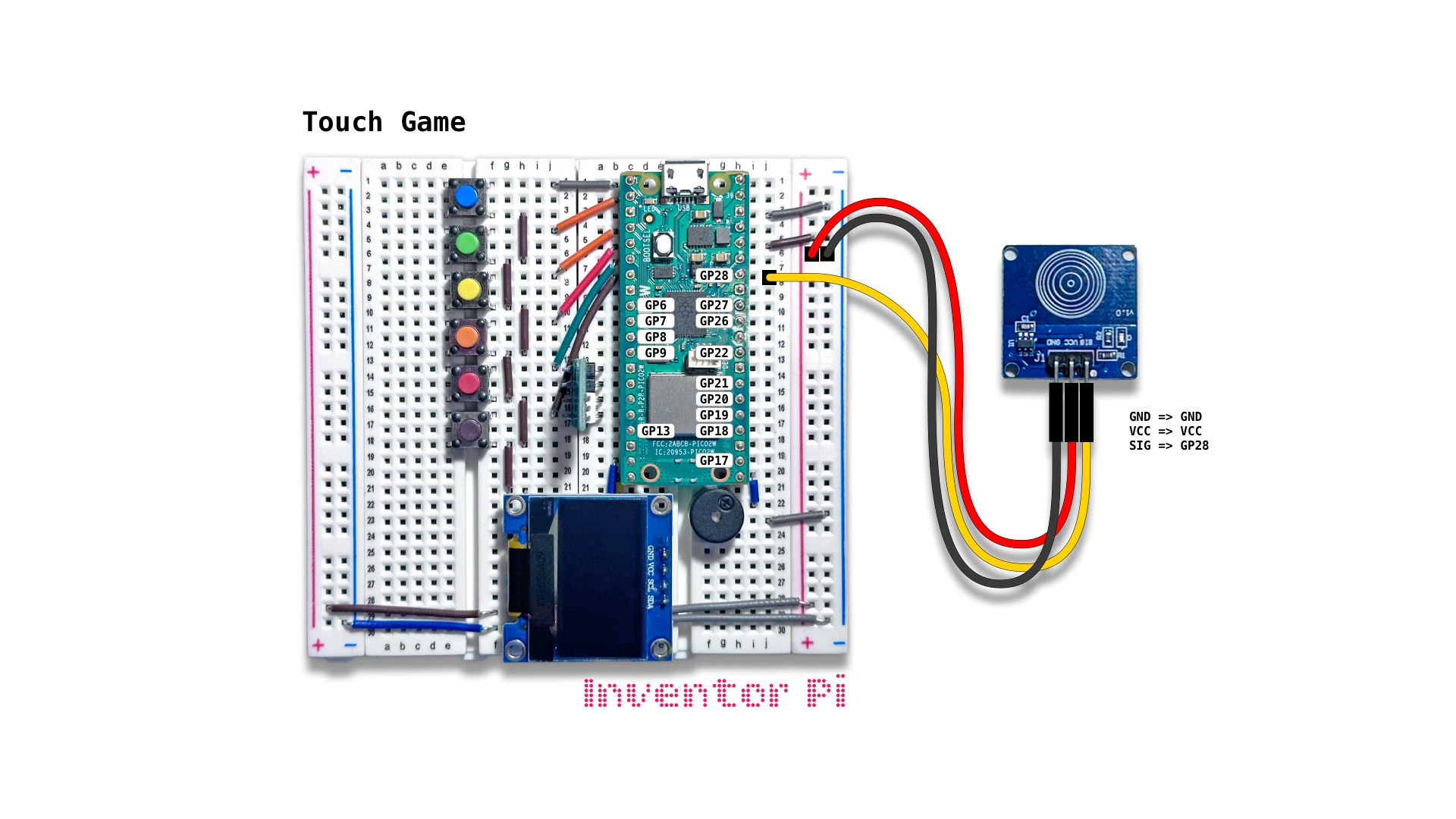
A MicroPython code example running on a Raspberry Pi Pico 2 W microcontroller connected to a capacitive touch sensor module, a passive piezo buzzer, and an OLED display module (SSD1306) on a breadboard to create a reaction time testing game, and to learn to draw shapes on the OLED display
A capacitive touch sensor detects a touch by measuring changes in electrical charge when a human finger comes close. Humans are full of water and salt, making the body a natural conductor of electricity. It is used in smartphones for multi-touch navigation and gesture detection. In this script, we create a short game to test your reaction time, while also learning how to draw shapes on the OLED screen.
To read the sensor, we run:
1
2
3
4
5
6
7
8
9
10
from time import sleep
from machine import Pin

touch_sensor = Pin(28, Pin.IN)

while True:
    if touch_sensor.value() == 1:
        print("Touch Detected")
        while touch_sensor.value() == 1: pass # wait until touch is not detected
    print("No Touch")
For this game, we learn to draw on the OLED screen, using oled.display.ellipse to draw a circle, and oled.display.fill_rect to draw a rectangle. The function below draws happy or sad face based on the parameters passed to it.
1
2
3
4
5
6
7
8
9
10
11
12
13
14
15
16
17
18
19
20
def draw_face(text_line_1 = "", text_line_2 = "", happy = False, sad = False, inverted = False):
    center_x = 64
    center_y = 42
    face_radius = 20
    color = 0 if inverted else 1 # default white color, black if inverted == True
    oled.display.fill(0)
    oled.display.text(text_line_1, 0, 0) # line 1 text
    oled.display.text(text_line_2, 0, 56) # line 2 text
    oled.display.ellipse(center_x, center_y, face_radius, face_radius, 1, color == 0) # face circle
    oled.display.ellipse(center_x - 7, center_y - 8, 1, 1, color, True) # left eye
    oled.display.ellipse(center_x + 7, center_y - 8, 1, 1, color, True) # right eye
    if happy:
        oled.display.ellipse(center_x, center_y, 10, 10, color, False, 0x4 | 0x8) # happy face semi-circle
        oled.display.fill_rect(center_x - 11, center_y, 22, 5, 1 - color) # erase part of semi-circle
    elif sad:
        oled.display.ellipse(center_x, center_y + 14, 10, 10, color, False, 0x1 | 0x2) # sad face semi-circle
        oled.display.fill_rect(center_x - 11, center_y + 10, 22, 5, 1 - color) # erase part of semi-circle
    else:
        oled.display.hline(center_x - 10, center_y + 7, 20, color) # flat face line
    oled.display.show()
The main loop of our game is easy to follow because it calls easy to understand function names.
1
2
3
4
5
6
7
8
9
10
11
12
13
14
15
16
17
18
19
    oled.print("Touch when you", "see happy face") # show instructions at start
    sleep(3)

    while True:

        # Step 1: Start game
        start_game()
        sleep(uniform(2.0, 7.0)) # wait for random time between 2 and 7 seconds

        # Step 2: After a random time from 2 to 7 sec, switch to happy face with label Touch Now
        draw_face(happy=True, text_line_1="Touch now")
        start_time = ticks_ms()

        # Step 3: Wait for touch and show result or false start
        wait_for_touch()

        # Step 6: Wait 3 seconds, then show touch to play again
        sleep(3)
        show_touch_to_play_again()
Create a new file in Thonny, with file name touch_game.py. Copy and paste the code below into the file you created.
1
2
3
4
5
6
7
8
9
10
11
12
13
14
15
16
17
18
19
20
21
22
23
24
25
26
27
28
29
30
31
32
33
34
35
36
37
38
39
40
41
42
43
44
45
46
47
48
49
50
51
52
53
54
55
56
57
58
59
60
61
62
63
64
65
66
67
68
69
70
71
72
73
74
75
76
77
78
79
80
81
82
83
84
85
86
87
88
89
90
91
92
93
94
95
96
97
98
99
100
101
102
103
104
105
106
107
108
109
110
111
112
113
114
115
116
117
118
119
print("\nTouch Game")

# DESCRIPTION

# A capacitive touch sensor detects a touch by measuring changes in electrical charge
# when a human finger comes close. Humans are full of water and salt, making the body
# a natural conductor of electricity. It is used in smartphones for multi-touch
# navigation and gesture detection. In this script, we create a short game to test
# your reaction time, while also learning how to draw shapes on the OLED screen.

# CONNECTIONS REQUIRED

# Connect Touch Sensor module (blue board with concentric circles)
#   Pins: GND => GND, VCC => VCC, SIG => GP28

from buzzer import Buzzer
from oled import OLED
from machine import Pin
from time import sleep, ticks_ms, ticks_diff
from random import uniform, choice

buzzer = Buzzer(pwm_pin=16)
oled = OLED(scl_pin=15, sda_pin=14)
touch_sensor = Pin(28, Pin.IN)

def draw_face(text_line_1 = "", text_line_2 = "", happy = False, sad = False, inverted = False):
    center_x = 64
    center_y = 42
    face_radius = 20
    color = 0 if inverted else 1 # default white color, black if inverted == True
    oled.display.fill(0)
    oled.display.text(text_line_1, 0, 0) # line 1 text
    oled.display.text(text_line_2, 0, 56) # line 2 text
    oled.display.ellipse(center_x, center_y, face_radius, face_radius, 1, color == 0) # face circle
    oled.display.ellipse(center_x - 7, center_y - 8, 1, 1, color, True) # left eye
    oled.display.ellipse(center_x + 7, center_y - 8, 1, 1, color, True) # right eye
    if happy:
        oled.display.ellipse(center_x, center_y, 10, 10, color, False, 0x4 | 0x8) # happy face semi-circle
        oled.display.fill_rect(center_x - 11, center_y, 22, 5, 1 - color) # erase part of semi-circle
    elif sad:
        oled.display.ellipse(center_x, center_y + 14, 10, 10, color, False, 0x1 | 0x2) # sad face semi-circle
        oled.display.fill_rect(center_x - 11, center_y + 10, 22, 5, 1 - color) # erase part of semi-circle
    else:
        oled.display.hline(center_x - 10, center_y + 7, 20, color) # flat face line
    oled.display.show()

def show_false_start():
    oled.print("Touched", "too early", "", "Try again")
    buzzer.play_tone(200, 1)

def show_result(reaction_time):
    # Show result if ended before timeout
    if reaction_time < 2000:
        if reaction_time < 200:
            result = choice(["Impossible", "Lightning", "Aced it"])
        elif reaction_time < 400:
            result = choice(["Super", "Amazing", "Not bad"])
        elif reaction_time < 1000:
            result = choice(["Do better", "Step it up", "Try harder"])
        else:
            result = choice(["Zzzzzzzz", "Snail speed", "Too slow"])
        draw_face(happy=True, inverted=True, text_line_1=result, text_line_2=f"{reaction_time/1000:.2f}s")
        buzzer.play_melody("E4 0.1", "F4 0.1", "A4 0.3")

    # Show sad face if timed out
    else:
        draw_face(sad=True, inverted=True, text_line_1="Too late")
        buzzer.play_melody("F4 0.3", "E4 0.3", "C4 0.8")

def start_game():
    buzzer.play_tone(600)
    draw_face(text_line_1="Get ready")

def wait_for_touch():
    global start_time
    draw_face(happy=True, text_line_1="Touch now")
    start_time = ticks_ms()
    # If already touching at the start, show false start
    if touch_sensor.value() == 1: show_false_start()
    else:
        # Loop until either touched or 2 seconds have passed
        while touch_sensor.value() == 0 and ticks_diff(ticks_ms(), start_time) < 2000: pass

        # Measure time elapsed as reaction time and show result
        end_time = ticks_ms()
        reaction_time = ticks_diff(end_time, start_time)
        show_result(reaction_time)

def show_touch_to_play_again():
    oled.print("Touch to", "play again")
    while touch_sensor.value() == 0: pass # wait until touched, which completes the loop cycle and the loop will repeat indefinitely

try:
    oled.print("Touch when you", "see happy face") # show instructions at start
    sleep(3)

    while True:

        # Step 1: Start game
        start_game()
        sleep(uniform(2.0, 7.0)) # wait for random time between 2 and 7 seconds

        # Step 2: After a random time from 2 to 7 sec, switch to happy face with label Touch Now
        draw_face(happy=True, text_line_1="Touch now")
        start_time = ticks_ms()

        # Step 3: Wait for touch and show result or false start
        wait_for_touch()

        # Step 6: Wait 3 seconds, then show touch to play again
        sleep(3)
        show_touch_to_play_again()

except KeyboardInterrupt:
    print("\nInterrupted by user!")

finally:
    oled.reset()
    buzzer.reset()