टच गेम
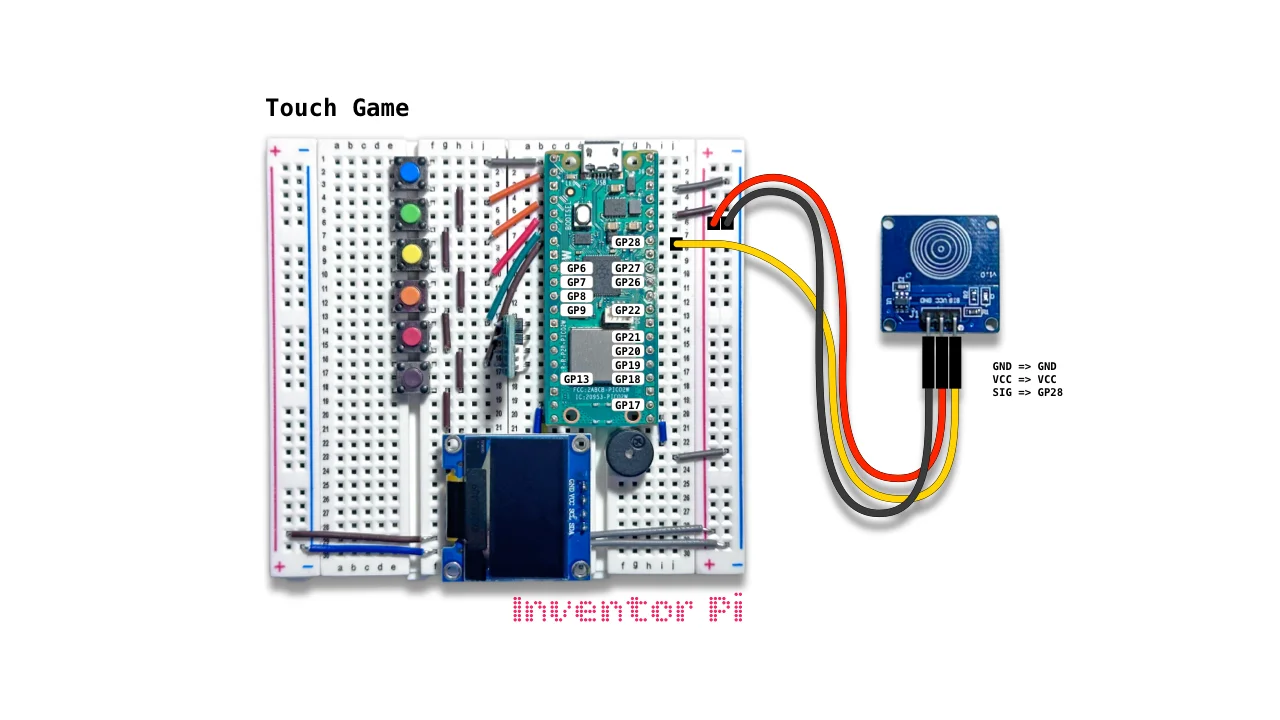
माइक्रो पाइथन कोड का एक उदाहरण Raspberry Pi Pico 2W माइक्रोकंट्रोलर पर चल रहा है ब्रेडबोर्ड पर कैपेसिटिव टच सेंसर मॉड्यूल, पैसिव पीजो बजर और OLED डिस्प्ले मॉड्यूल (SSD1306) से जुड़ा हुआ है। प्रतिक्रिया समय परीक्षण खेल बनाने के लिए, और ओएलईडी डिस्प्ले पर आकृतियाँ बनाना सीखना।
एक कैपेसिटिव टच सेंसर मानव उंगली के पास आने पर विद्युत आवेश में होने वाले परिवर्तनों को मापकर स्पर्श का पता लगाता है।. मनुष्य का शरीर पानी और नमक से भरपूर होता है, जिससे शरीर बिजली का प्राकृतिक सुचालक बन जाता है।. इसका उपयोग स्मार्टफोन में मल्टी-टच नेविगेशन और जेस्चर डिटेक्शन के लिए किया जाता है।. इस स्क्रिप्ट में, हम आपकी प्रतिक्रिया समय का परीक्षण करने के लिए एक छोटा गेम बनाते हैं, साथ ही साथ OLED स्क्रीन पर आकृतियाँ बनाना भी सीखते हैं।.
सेंसर से रीडिंग लेने के लिए, हम निम्न कमांड चलाते हैं:
1
2
3
4
5
6
7
8
9
10

from time import sleep
from machine import Pin

touch_sensor = Pin(28, Pin.IN)

while True:
    if touch_sensor.value() == 1:
        print("Touch Detected")
        while touch_sensor.value() == 1: pass # wait until touch is not detected
    print("No Touch")
इस खेल में, हम OLED स्क्रीन पर चित्र बनाना सीखते हैं, जिसमें वृत्त बनाने के लिए oled.display.ellipse और आयत बनाने के लिए oled.display.fill_rect उपयोग किया जाता है।. नीचे दिया गया फ़ंक्शन इसमें पास किए गए पैरामीटर के आधार पर खुश या उदास चेहरा बनाता है।.
1
2
3
4
5
6
7
8
9
10
11
12
13
14
15
16
17
18
19
20

def draw_face(text_line_1 = "", text_line_2 = "", happy = False, sad = False, inverted = False):
    center_x = 64
    center_y = 42
    face_radius = 20
    color = 0 if inverted else 1 # default white color, black if inverted == True
    oled.display.fill(0)
    oled.display.text(text_line_1, 0, 0) # line 1 text
    oled.display.text(text_line_2, 0, 56) # line 2 text
    oled.display.ellipse(center_x, center_y, face_radius, face_radius, 1, color == 0) # face circle
    oled.display.ellipse(center_x - 7, center_y - 8, 1, 1, color, True) # left eye
    oled.display.ellipse(center_x + 7, center_y - 8, 1, 1, color, True) # right eye
    if happy:
        oled.display.ellipse(center_x, center_y, 10, 10, color, False, 0x4 | 0x8) # happy face semi-circle
        oled.display.fill_rect(center_x - 11, center_y, 22, 5, 1 - color) # erase part of semi-circle
    elif sad:
        oled.display.ellipse(center_x, center_y + 14, 10, 10, color, False, 0x1 | 0x2) # sad face semi-circle
        oled.display.fill_rect(center_x - 11, center_y + 10, 22, 5, 1 - color) # erase part of semi-circle
    else:
        oled.display.hline(center_x - 10, center_y + 7, 20, color) # flat face line
    oled.display.show()
हमारे गेम का मुख्य लूप समझना आसान है क्योंकि इसमें आसानी से समझ में आने वाले फ़ंक्शन नामों का उपयोग किया गया है।.
1
2
3
4
5
6
7
8
9
10
11
12
13
14
15
16
17
18
19

    oled.print("Touch when you", "see happy face") # show instructions at start
    sleep(3)

    while True:

        # Step 1: Start game
        start_game()
        sleep(uniform(2.0, 7.0)) # wait for random time between 2 and 7 seconds

        # Step 2: After a random time from 2 to 7 sec, switch to happy face with label Touch Now
        draw_face(happy=True, text_line_1="Touch now")
        start_time = ticks_ms()

        # Step 3: Wait for touch and show result or false start
        wait_for_touch()

        # Step 6: Wait 3 seconds, then show touch to play again
        sleep(3)
        show_touch_to_play_again()
Thonny में touch_game.py नाम से एक नई फ़ाइल बनाएँ।. नीचे दिए गए कोड को कॉपी करके अपनी बनाई गई फ़ाइल में पेस्ट करें।.
1
2
3
4
5
6
7
8
9
10
11
12
13
14
15
16
17
18
19
20
21
22
23
24
25
26
27
28
29
30
31
32
33
34
35
36
37
38
39
40
41
42
43
44
45
46
47
48
49
50
51
52
53
54
55
56
57
58
59
60
61
62
63
64
65
66
67
68
69
70
71
72
73
74
75
76
77
78
79
80
81
82
83
84
85
86
87
88
89
90
91
92
93
94
95
96
97
98
99
100
101
102
103
104
105
106
107
108
109
110
111
112
113
114
115
116
117
118
119

print("\nTouch Game")

# DESCRIPTION

# A capacitive touch sensor detects a touch by measuring changes in electrical charge
# when a human finger comes close. Humans are full of water and salt, making the body
# a natural conductor of electricity. It is used in smartphones for multi-touch
# navigation and gesture detection. In this script, we create a short game to test
# your reaction time, while also learning how to draw shapes on the OLED screen.

# CONNECTIONS REQUIRED

# Connect Touch Sensor module (blue board with concentric circles)
#   Pins: GND => GND, VCC => VCC, SIG => GP28

from buzzer import Buzzer
from oled import OLED
from machine import Pin
from time import sleep, ticks_ms, ticks_diff
from random import uniform, choice

buzzer = Buzzer(pwm_pin=16)
oled = OLED(scl_pin=15, sda_pin=14)
touch_sensor = Pin(28, Pin.IN)

def draw_face(text_line_1 = "", text_line_2 = "", happy = False, sad = False, inverted = False):
    center_x = 64
    center_y = 42
    face_radius = 20
    color = 0 if inverted else 1 # default white color, black if inverted == True
    oled.display.fill(0)
    oled.display.text(text_line_1, 0, 0) # line 1 text
    oled.display.text(text_line_2, 0, 56) # line 2 text
    oled.display.ellipse(center_x, center_y, face_radius, face_radius, 1, color == 0) # face circle
    oled.display.ellipse(center_x - 7, center_y - 8, 1, 1, color, True) # left eye
    oled.display.ellipse(center_x + 7, center_y - 8, 1, 1, color, True) # right eye
    if happy:
        oled.display.ellipse(center_x, center_y, 10, 10, color, False, 0x4 | 0x8) # happy face semi-circle
        oled.display.fill_rect(center_x - 11, center_y, 22, 5, 1 - color) # erase part of semi-circle
    elif sad:
        oled.display.ellipse(center_x, center_y + 14, 10, 10, color, False, 0x1 | 0x2) # sad face semi-circle
        oled.display.fill_rect(center_x - 11, center_y + 10, 22, 5, 1 - color) # erase part of semi-circle
    else:
        oled.display.hline(center_x - 10, center_y + 7, 20, color) # flat face line
    oled.display.show()

def show_false_start():
    oled.print("Touched", "too early", "", "Try again")
    buzzer.play_tone(200, 1)

def show_result(reaction_time):
    # Show result if ended before timeout
    if reaction_time < 2000:
        if reaction_time < 200:
            result = choice(["Impossible", "Lightning", "Aced it"])
        elif reaction_time < 400:
            result = choice(["Super", "Amazing", "Not bad"])
        elif reaction_time < 1000:
            result = choice(["Do better", "Step it up", "Try harder"])
        else:
            result = choice(["Zzzzzzzz", "Snail speed", "Too slow"])
        draw_face(happy=True, inverted=True, text_line_1=result, text_line_2=f"{reaction_time/1000:.2f}s")
        buzzer.play_melody("E4 0.1", "F4 0.1", "A4 0.3")

    # Show sad face if timed out
    else:
        draw_face(sad=True, inverted=True, text_line_1="Too late")
        buzzer.play_melody("F4 0.3", "E4 0.3", "C4 0.8")

def start_game():
    buzzer.play_tone(600)
    draw_face(text_line_1="Get ready")

def wait_for_touch():
    global start_time
    draw_face(happy=True, text_line_1="Touch now")
    start_time = ticks_ms()
    # If already touching at the start, show false start
    if touch_sensor.value() == 1: show_false_start()
    else:
        # Loop until either touched or 2 seconds have passed
        while touch_sensor.value() == 0 and ticks_diff(ticks_ms(), start_time) < 2000: pass

        # Measure time elapsed as reaction time and show result
        end_time = ticks_ms()
        reaction_time = ticks_diff(end_time, start_time)
        show_result(reaction_time)

def show_touch_to_play_again():
    oled.print("Touch to", "play again")
    while touch_sensor.value() == 0: pass # wait until touched, which completes the loop cycle and the loop will repeat indefinitely

try:
    oled.print("Touch when you", "see happy face") # show instructions at start
    sleep(3)

    while True:

        # Step 1: Start game
        start_game()
        sleep(uniform(2.0, 7.0)) # wait for random time between 2 and 7 seconds

        # Step 2: After a random time from 2 to 7 sec, switch to happy face with label Touch Now
        draw_face(happy=True, text_line_1="Touch now")
        start_time = ticks_ms()

        # Step 3: Wait for touch and show result or false start
        wait_for_touch()

        # Step 6: Wait 3 seconds, then show touch to play again
        sleep(3)
        show_touch_to_play_again()

except KeyboardInterrupt:
    print("\nInterrupted by user!")

finally:
    oled.reset()
    buzzer.reset()