ピアノ
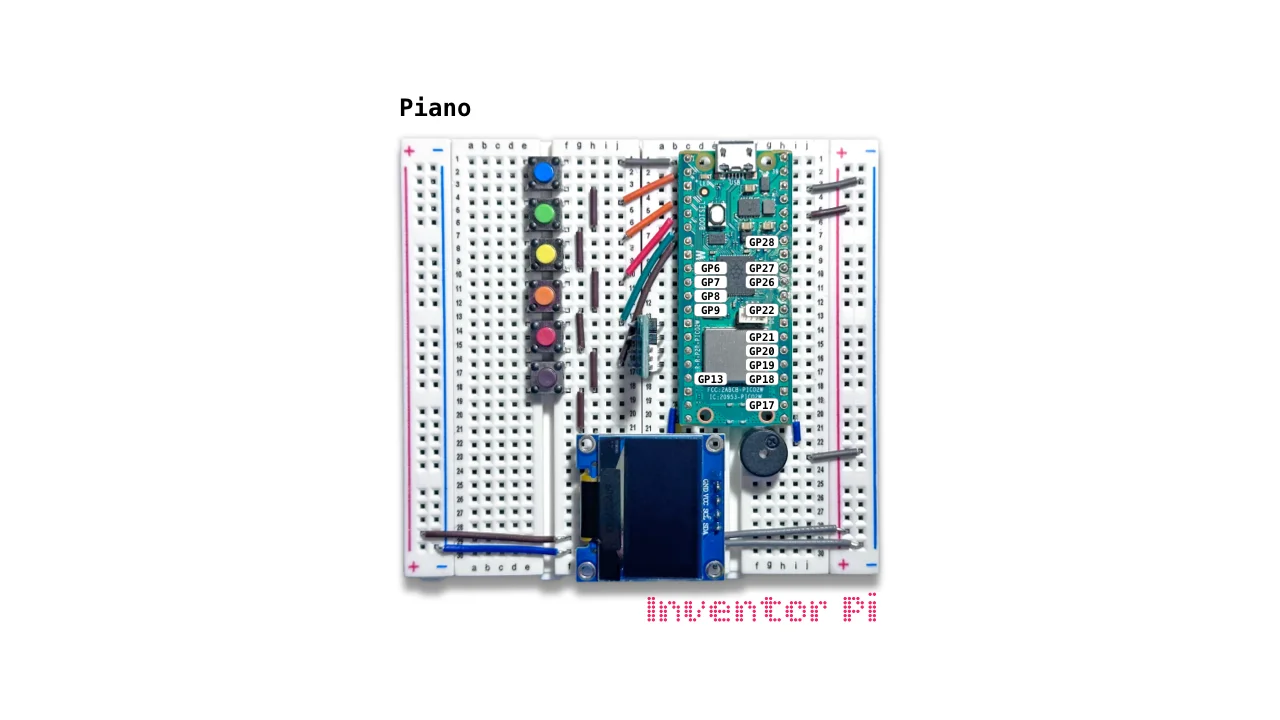
MicroPythonコードの例 ラズベリーパイ ピコ 2Wマイクロコントローラー上で動作 パッシブピエゾブザー、OLEDディスプレイモジュール(SSD1306)、およびブレッドボード上の6つのプッシュボタンに接続されています。 ブザーで異なる音符を鳴らす、 ディスプレイに音符と五線譜を描き、 一時停止後に録音として再生する
ボタンを使って様々な音符を演奏します. また、OLEDスクリーン上に図形を描いて楽譜の五線譜に音符を描く方法も学びます。. 最後に、音符とその演奏時間とともにlistに保存します。. ユーザーの入力が一時停止すると、音符を再生して楽しい楽器を作り出します。.
6つのボタンに対して6つの異なる入力を読み取りました. そのためには、以下に示すようなlistを使用します。
1
2
3
4
5
6
7
8
9
10
11
12
13
14
15
16
17
18
19
20
21
22
23
24
25
26
27
28
29
30
31

from machine import Pin
from time import sleep, ticks_ms, ticks_diff
from buzzer import Buzzer

buzzer = Buzzer(pwm_pin=16)

note = "Silence"
notes = []
buttons = []
start_time = ticks_ms()
buzzer.melody_note_gap = 0

# Add buttons for each buzzer note C4, D4, E4, F4, G4, A4
# connected to pins 0, 1, 2, 3, 4, 5 respectively
for i, note in enumerate(buzzer.notes): buttons.append(Pin(i, Pin.IN, Pin.PULL_UP))

def current_note_duration():
    return ticks_diff(ticks_ms(), start_time) / 1000

def current_note():
    note = "Silence"
    for i, key in enumerate(buzzer.notes):
        if buttons[i].value() == 0:
            note = key
    return note

while True:
    note = current_note()
    note_duration = current_note_duration()
    buzzer.play_note(note)
OLEDスクリーン上に図形を描画する方法をさらに学ぶために、 draw_notes_on_screen()関数を作成して、演奏される音符の形状を描画します。
1
2
3
4
5
6
7
8
9
10
11
12
13
14
15
16

def draw_notes_on_screen():
    global note, notes
    notes.append(note) # save note in list
    if len(notes) > 7: notes.pop(0) # remove oldest note if list grows past 7 notes
    oled.display.fill(0) # clear display
    for i in range(5): oled.display.hline(0, 8*i + 8, 128, 1) # draw 5 staff lines
    for position, note in enumerate(notes):
        draw_note(position, note) # draw each note at its position
    oled.display.show()

def draw_note(position, note):
    x = 16 + 16*position
    y = 48 - 4 * buzzer.notes.index(note)
    oled.display.ellipse(x - 6, y, 6, 4, 1, True) # note ellipse
    oled.display.vline(x, y - 28, 28, 1) # note vertical line
    if note == "C4": oled.display.hline(x - 16, y, 20, 1) # add a small horizontal line for C4
最後に、音符とその演奏時間とともにlistに保存します。. ユーザーの入力が一時停止すると、音符を再生して楽しい楽器を作り出します。. そのため、以下にいくつかのヘルパー関数を追加します。.
1
2
3
4
5
6
7
8
9
10
11
12
13
14
15
16
17
18
19
20
21
22
23
24
25
26

recording = []

def remove_empty_notes_from_start_and_end():
    global recording
    if recording[0].startswith("Silence"): recording.pop(0)
    if recording[-1].startswith("Silence"): recording.pop()

def add_last_note_to_recording():
    global recording, start_time
    last_note = value_filter.previous_value
    last_note_duration = ticks_diff(ticks_ms(), start_time) / 1000
    recording.append(f"{last_note} {last_note_duration}")
    start_time = ticks_ms()

def reset_recording():
    global recording, notes, start_time
    recording.clear()
    notes.clear()
    start_time = ticks_ms()

def replay_recording():
    remove_empty_notes_from_start_and_end()
    oled.print("Replaying...")
    buzzer.play_melody(*recording) # replay recording
    reset_recording() # reset to start recording again
    oled.print("Ready")
これらの機能をすべて備えても、メインループは依然として理解しやすい。.
1
2
3
4
5
6
7
8
9
10
11
12
13
14
15

    while True:
        note = current_note()
        note_duration = current_note_duration()
        buzzer.play_note(note)

        # If stopped playing for 2 seconds, and anything was recorded, replay the recording
        if note == "Silence" and note_duration > 2 and recording: replay_recording()

        if value_filter.did_change(note): # when note changed or ended

            # Save note in recording list to replay later
            add_last_note_to_recording()

            # When a new note is pressed, append to notes and draw notes
            if note != "Silence": draw_notes_on_screen()
これら全てをまとめてテストするには、Thonnyでpiano.pyという名前の新しいファイルを作成します。. 以下のコードをコピーして、作成したファイルに貼り付けてください。.
1
2
3
4
5
6
7
8
9
10
11
12
13
14
15
16
17
18
19
20
21
22
23
24
25
26
27
28
29
30
31
32
33
34
35
36
37
38
39
40
41
42
43
44
45
46
47
48
49
50
51
52
53
54
55
56
57
58
59
60
61
62
63
64
65
66
67
68
69
70
71
72
73
74
75
76
77
78
79
80
81
82
83
84
85
86
87
88
89
90
91
92
93
94
95
96
97
98
99
100
101
102
103
104
105
106
107
108
109
110

print("\nPiano")

# DESCRIPTION

# We use the buttons to play different musical notes. We also learn how to
# draw shapes on the OLED screen to draw the notes on musical staff lines.
# Finally, we save the notes in a list along with their duration played. And
# when user input pauses, we replay the notes to create a fun musical instrument.

# CONNECTIONS REQUIRED

# No additional connections are needed

from time import sleep, ticks_ms, ticks_diff
from buzzer import Buzzer
from oled import OLED
from machine import Pin
from value_filter import ValueFilter

buzzer = Buzzer(pwm_pin=16)
oled = OLED(scl_pin=15, sda_pin=14)
value_filter = ValueFilter(initial_value="Silence")

note = "Silence"
notes = []
buttons = []
recording = []
start_time = ticks_ms()
oled.print("Ready")
buzzer.melody_note_gap = 0

# Add buttons for each buzzer note C4, D4, E4, F4, G4, A4
# connected to pins 0, 1, 2, 3, 4, 5 respectively
for i, note in enumerate(buzzer.notes): buttons.append(Pin(i, Pin.IN, Pin.PULL_UP))

def remove_empty_notes_from_start_and_end():
    global recording
    if recording[0].startswith("Silence"): recording.pop(0)
    if recording[-1].startswith("Silence"): recording.pop()

def add_last_note_to_recording():
    global recording, start_time
    last_note = value_filter.previous_value
    last_note_duration = ticks_diff(ticks_ms(), start_time) / 1000
    recording.append(f"{last_note} {last_note_duration}")
    start_time = ticks_ms()

def reset_recording():
    global recording, notes, start_time
    recording.clear()
    notes.clear()
    start_time = ticks_ms()

def replay_recording():
    remove_empty_notes_from_start_and_end()
    oled.print("Replaying...")
    buzzer.play_melody(*recording) # replay recording
    reset_recording() # reset to start recording again
    oled.print("Ready")

def current_note_duration():
    return ticks_diff(ticks_ms(), start_time) / 1000

def current_note():
    note = "Silence"
    for i, key in enumerate(buzzer.notes):
        if buttons[i].value() == 0:
            note = key
    return note

def draw_notes_on_screen():
    global note, notes
    notes.append(note) # save note in list
    if len(notes) > 7: notes.pop(0) # remove oldest note if list grows past 7 notes
    oled.display.fill(0) # clear display
    for i in range(5): oled.display.hline(0, 8*i + 8, 128, 1) # draw 5 staff lines
    for position, note in enumerate(notes):
        draw_note(position, note) # draw each note at its position
    oled.display.show()

def draw_note(position, note):
    x = 16 + 16*position
    y = 48 - 4 * buzzer.notes.index(note)
    oled.display.ellipse(x - 6, y, 6, 4, 1, True) # note ellipse
    oled.display.vline(x, y - 28, 28, 1) # note vertical line
    if note == "C4": oled.display.hline(x - 16, y, 20, 1) # add a small horizontal line for C4

try:
    while True:
        note = current_note()
        note_duration = current_note_duration()
        buzzer.play_note(note)

        # If stopped playing for 2 seconds, and anything was recorded, replay the recording
        if note == "Silence" and note_duration > 2 and recording: replay_recording()

        if value_filter.did_change(note): # when note changed or ended

            # Save note in recording list to replay later
            add_last_note_to_recording()

            # When a new note is pressed, append to notes and draw notes
            if note != "Silence": draw_notes_on_screen()

except KeyboardInterrupt:
    print("\nInterrupted by user!")

finally:
    oled.reset()
    buzzer.reset()