Bluetooth-adverteren en Bluetooth-scannen
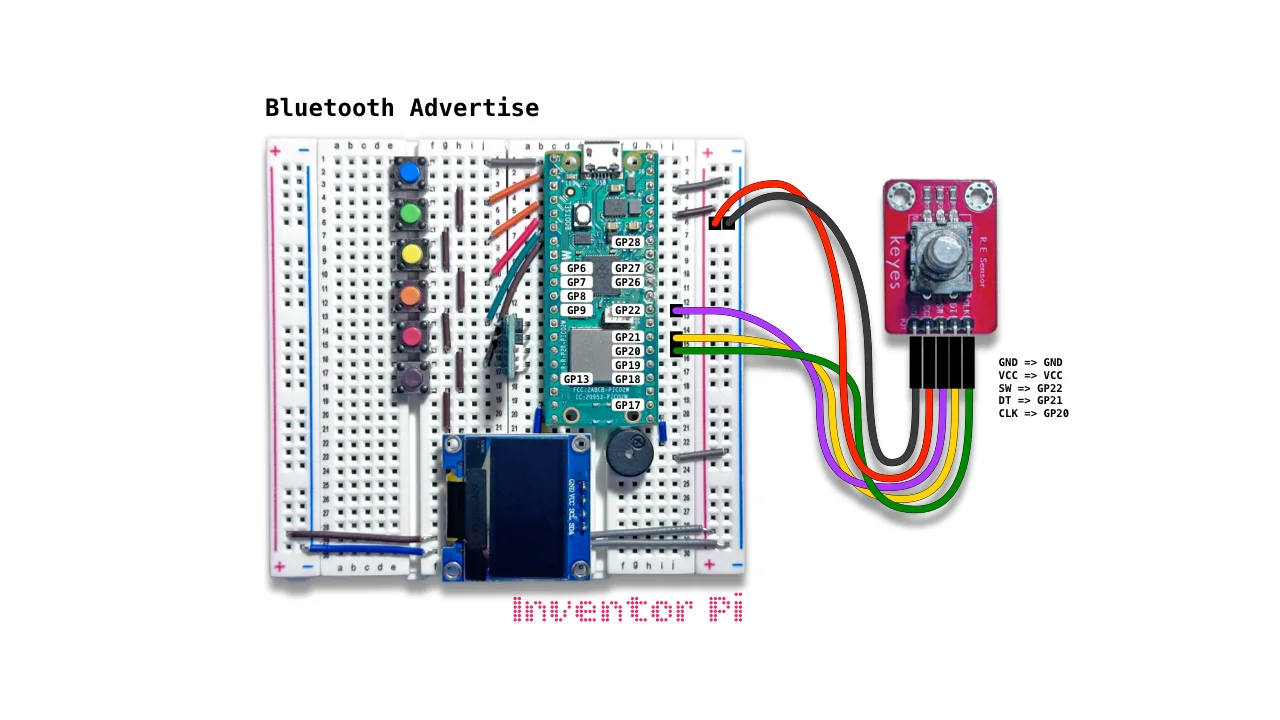
Een voorbeeld van MicroPython-code draait op een Raspberry Pi Pico 2W microcontroller aangesloten op een draai-encoder-module, een RGB-led en een OLED-displaymodule (SSD1306) op een breadboard om de rode, groene en blauwe kanalen van de LED afzonderlijk aan te sturen en zo elke gewenste kleur te creëren De hexadecimale waarde en de R-, G- en B-waarden worden op het display weergegeven Verstuur het via Bluetooth door het in te bedden in de service-UUID van de BLE-advertentiegegevens Gebruik Bluetooth-scanning om de kleur van nabijgelegen Raspberry Pi Pico-apparaten uit te lezen en de ontvangen kleur op LED's weergeven, waardoor een cluster van gesynchroniseerde Pico-apparaten ontstaat
We gebruiken een draaiknop om de rode, groene en blauwe kleur van de LED te veranderen en zenden die kleur vervolgens door naar apparaten in de buurt, die hun LED's op dezelfde kleur instellen. Wanneer één apparaat bluetooth_advertise.py uitvoert en meerdere apparaten in de buurt bluetooth_scan.py uitvoeren, kunnen we een netwerk van gesynchroniseerde apparaten creëren. Zo kunnen een groep robots met elkaar communiceren en samenwerken.
Maak in Thonny een nieuw bestand aan met de naam bluetooth_advertise.py. Kopieer en plak de onderstaande code in het bestand dat je hebt gemaakt.
1
2
3
4
5
6
7
8
9
10
11
12
13
14
15
16
17
18
19
20
21
22
23
24
25
26
27
28
29
30
31
32
33
34
35
36
37
38
39
40
41
42
43
44
45
46
47
48
49
50
51
52
53
54
55
56
57
58
59
60
61
62
63
64
65
66
67
68
69
70
71
72
73
74
75
76
77
78
79
80
81
82
83
84
85

print("\nBluetooth Advertise")

# DESCRIPTION

# We use a rotary encoder to change red, green and blue color of the LED, then
# broadcast that color to nearby devices, which set their LEDs to the same color.
# When one device runs bluetooth_advertise.py and multiple nearby devices run
# bluetooth_scan.py, we can create a network of synced devices.
# This is how a cluster of robots can communicate and work together.

# CONNECTIONS REQUIRED

# Connect R E Sensor (KY-040) module
#   Pins: GND => GND, VCC => VCC, SW => GP22, DT => GP21, CLK => GP20

from time import sleep
from oled import OLED
from rgbled import RGBLED
from rotary_encoder import RotaryEncoder
from bluetooth import BLE, UUID
from value_filter import ValueFilter
from ble_helper import advertising_payload

oled = OLED(scl_pin=15, sda_pin=14)
rgbled = RGBLED(red_pin=12, green_pin=11, blue_pin=10)
rotary_encoder = RotaryEncoder(sw_pin=22, dt_pin=21, clk_pin=20, min_val=0, max_val=255)
uuid_filter = ValueFilter()
ble = BLE()
ble.active(True)

rgb = [0, 0, 0]    # array of red, green and blue values, initially set to zero
channel = 0     # 0 is red, 1 is green and 2 is blue

def show_color_values_on_screen():
    lines = [f" HEX: {rgbled.hex}"]
    for i in range(3): lines.append(f"{"->" if channel == i else "  "} {"RGB"[i]}: {rgb[i]}")
    oled.print(*lines)

def set_color():
    rgb[channel] = rotary_encoder.value() # Update color value for current color channel in rgb list
    rgbled.set_color(*rgb)

def advertise_color():
    # Bluetooth advertise broadcasts a message with service UUID (unique id) to any nearby devices listening
    # We will embed the color values inside the service UUID, which a listening device can then extract
    # UUID is a random hexadecimal string with format XXXXXXXX-RR00-GG01-BB02-XXXXXXXXXXXX
    uuid = UUID(f"F62BA79A-{rgb[0]:02X}00-{rgb[1]:02X}01-{rgb[2]:02X}02-FF3591B2FA74") #02X changes number to 2 character hex

    # Set or update BLE advertising payload only when the UUID value changes
    if uuid_filter.did_change(uuid):
        adv_data = advertising_payload(name="Pico2W", services=[uuid])
        ble.gap_advertise(interval_us=500000, adv_data=adv_data) # repeats every 0.5 second

def monitor_button_pressed():
    global channel
    if rotary_encoder.button.value() == 0: # value 0 => button pressed
        channel = (channel + 1) % 3 # switch to next color
        rotary_encoder.update_value(rgb[channel]) # initialize encoder to the new color's value
        while rotary_encoder.button.value() == 0: pass # loop until button is released

try:
    while True:

        # Step 1: Update color to the current encoder value
        set_color()

        # Step 2: Show red, green and blue values on screen
        show_color_values_on_screen()

        # Step 3: Broadcast color value to nearby devices
        advertise_color()

        # Step 4: Monitor if button is pressed. When pressed, switch to the next color channel
        monitor_button_pressed()

        sleep(0.05)

except KeyboardInterrupt:
    print("\nInterrupted by user!")

finally:
    ble.gap_advertise(None)
    ble.active(False)
    oled.reset()
    rgbled.reset()
Om bluetooth_scan.py te testen op een ander apparaat, maak je op de computer van dat tweede apparaat een nieuw bestand aan in Thonny met de naam bluetooth_scan.py. Kopieer en plak de onderstaande code in het bestand dat je hebt gemaakt.
Hint
Om bluetooth_scan.py snel op een of meer apparaten uit te voeren zonder nieuwe code te uploaden, kunt u de alternatieve methode gebruiken die wordt beschreven in het gedeelte ' Aan de slag'..
1
2
3
4
5
6
7
8
9
10
11
12
13
14
15
16
17
18
19
20
21
22
23
24
25
26
27
28
29
30
31
32
33
34
35
36
37
38
39
40
41
42
43
44
45
46
47
48
49
50
51
52

print("\nBluetooth Scan")

# DESCRIPTION

# We scan bluetooth signals from nearby devices and set the device LED to the
# color received from a device advertising it (using bluetooth_advertise.py).
# When one device runs bluetooth_advertise.py and multiple nearby devices run
# bluetooth_scan.py, we can create a network of synced devices.
# This is how a cluster of robots can communicate and work together.

# CONNECTIONS REQUIRED

# No additional connections are needed

from time import sleep
from oled import OLED
from rgbled import RGBLED
from ble_helper import read_uuid
from bluetooth import BLE

oled = OLED(scl_pin=15, sda_pin=14)
rgbled = RGBLED(red_pin=12, green_pin=11, blue_pin=10)

rgb = [0, 0, 0]

# BLE interrupt request handler gets triggered with advertising data for each BLE device found
def ble_irq(event, data):
    uuid = read_uuid(event, data, name="Pico2W")
    if uuid and uuid[21:23] == "02": # check if substring from char 21 to 23 matches 02 (XXXXXXXX-RR00-GG01-BB02-XXXXXXXXXXXX)
        hex = f"#{uuid[9:11]}{uuid[14:16]}{uuid[19:21]}"
        rgbled.set_color(hex=hex) #set LED color to value received
        oled.print(hex)

# Initialize BLE
ble = BLE()
ble.active(True)
ble.irq(ble_irq) # Setup IRQ (Interrupt Request) handler callback
ble.gap_scan(0, 20000) # Scan at 20ms interval
oled.print("Scanning...")

try:
    while True:
        sleep(5)

except KeyboardInterrupt:
    print("\nInterrupted by user!")

finally:
    ble.gap_scan(None)
    ble.active(False)
    oled.reset()
    rgbled.reset()