ब्लूटूथ विज्ञापन और ब्लूटूथ स्कैन
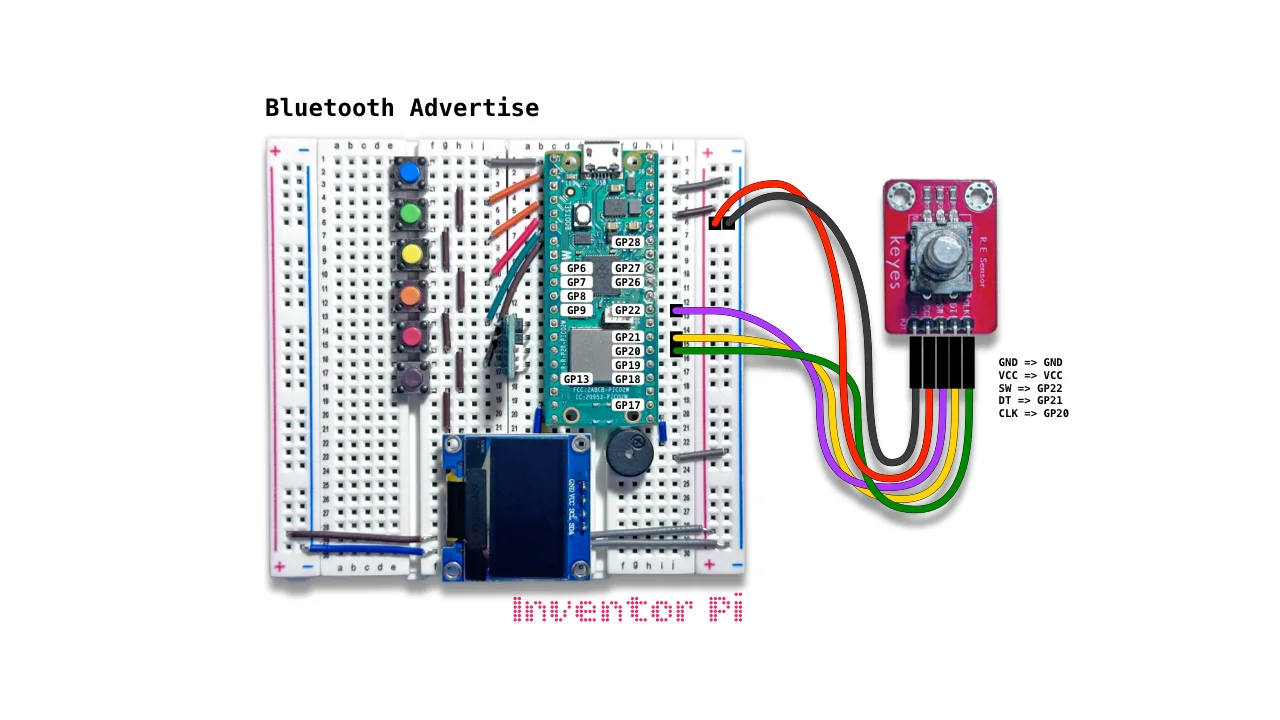
माइक्रो पाइथन कोड का एक उदाहरण Raspberry Pi Pico 2W माइक्रोकंट्रोलर पर चल रहा है ब्रेडबोर्ड पर रोटरी एनकोडर मॉड्यूल, आरजीबी एलईडी और ओएलईडी डिस्प्ले मॉड्यूल (एसएसडी1306) से जुड़ा हुआ है। एलईडी के लाल, हरे और नीले चैनलों को अलग-अलग नियंत्रित करके कोई भी रंग बनाया जा सकता है। डिस्प्ले पर हेक्साडेसिमल मान और R, G, B मान प्रदर्शित करें। इसे बीएलई विज्ञापन डेटा के सेवा यूयूआईडी में एम्बेड करके ब्लूटूथ के माध्यम से प्रसारित करें। आस-पास के रास्पबेरी पाई पिको उपकरणों पर रंग पढ़ने के लिए ब्लूटूथ स्कैनिंग का उपयोग करें। और प्राप्त रंग को एलईडी पर प्रदर्शित करें, जिससे सिंक्रनाइज़्ड पिको उपकरणों का एक समूह तैयार हो जाएगा।
हम एलईडी के लाल, हरे और नीले रंग को बदलने के लिए रोटरी एनकोडर का उपयोग करते हैं, फिर उस रंग को आस-पास के उपकरणों में प्रसारित करते हैं, जो अपनी एलईडी को उसी रंग में सेट कर लेते हैं।. जब एक डिवाइस bluetooth_advertise.py चलाता है और आस-पास के कई डिवाइस bluetooth_scan.py चलाते हैं, तो हम सिंक्रनाइज़्ड डिवाइसों का एक नेटवर्क बना सकते हैं।. इस तरह रोबोटों का एक समूह आपस में संवाद कर सकता है और मिलकर काम कर सकता है।.
Thonny में bluetooth_advertise.py नाम से एक नई फ़ाइल बनाएँ।. नीचे दिए गए कोड को कॉपी करके अपनी बनाई गई फ़ाइल में पेस्ट करें।.
1
2
3
4
5
6
7
8
9
10
11
12
13
14
15
16
17
18
19
20
21
22
23
24
25
26
27
28
29
30
31
32
33
34
35
36
37
38
39
40
41
42
43
44
45
46
47
48
49
50
51
52
53
54
55
56
57
58
59
60
61
62
63
64
65
66
67
68
69
70
71
72
73
74
75
76
77
78
79
80
81
82
83
84
85

print("\nBluetooth Advertise")

# DESCRIPTION

# We use a rotary encoder to change red, green and blue color of the LED, then
# broadcast that color to nearby devices, which set their LEDs to the same color.
# When one device runs bluetooth_advertise.py and multiple nearby devices run
# bluetooth_scan.py, we can create a network of synced devices.
# This is how a cluster of robots can communicate and work together.

# CONNECTIONS REQUIRED

# Connect R E Sensor (KY-040) module
#   Pins: GND => GND, VCC => VCC, SW => GP22, DT => GP21, CLK => GP20

from time import sleep
from oled import OLED
from rgbled import RGBLED
from rotary_encoder import RotaryEncoder
from bluetooth import BLE, UUID
from value_filter import ValueFilter
from ble_helper import advertising_payload

oled = OLED(scl_pin=15, sda_pin=14)
rgbled = RGBLED(red_pin=12, green_pin=11, blue_pin=10)
rotary_encoder = RotaryEncoder(sw_pin=22, dt_pin=21, clk_pin=20, min_val=0, max_val=255)
uuid_filter = ValueFilter()
ble = BLE()
ble.active(True)

rgb = [0, 0, 0]    # array of red, green and blue values, initially set to zero
channel = 0     # 0 is red, 1 is green and 2 is blue

def show_color_values_on_screen():
    lines = [f" HEX: {rgbled.hex}"]
    for i in range(3): lines.append(f"{"->" if channel == i else "  "} {"RGB"[i]}: {rgb[i]}")
    oled.print(*lines)

def set_color():
    rgb[channel] = rotary_encoder.value() # Update color value for current color channel in rgb list
    rgbled.set_color(*rgb)

def advertise_color():
    # Bluetooth advertise broadcasts a message with service UUID (unique id) to any nearby devices listening
    # We will embed the color values inside the service UUID, which a listening device can then extract
    # UUID is a random hexadecimal string with format XXXXXXXX-RR00-GG01-BB02-XXXXXXXXXXXX
    uuid = UUID(f"F62BA79A-{rgb[0]:02X}00-{rgb[1]:02X}01-{rgb[2]:02X}02-FF3591B2FA74") #02X changes number to 2 character hex

    # Set or update BLE advertising payload only when the UUID value changes
    if uuid_filter.did_change(uuid):
        adv_data = advertising_payload(name="Pico2W", services=[uuid])
        ble.gap_advertise(interval_us=500000, adv_data=adv_data) # repeats every 0.5 second

def monitor_button_pressed():
    global channel
    if rotary_encoder.button.value() == 0: # value 0 => button pressed
        channel = (channel + 1) % 3 # switch to next color
        rotary_encoder.update_value(rgb[channel]) # initialize encoder to the new color's value
        while rotary_encoder.button.value() == 0: pass # loop until button is released

try:
    while True:

        # Step 1: Update color to the current encoder value
        set_color()

        # Step 2: Show red, green and blue values on screen
        show_color_values_on_screen()

        # Step 3: Broadcast color value to nearby devices
        advertise_color()

        # Step 4: Monitor if button is pressed. When pressed, switch to the next color channel
        monitor_button_pressed()

        sleep(0.05)

except KeyboardInterrupt:
    print("\nInterrupted by user!")

finally:
    ble.gap_advertise(None)
    ble.active(False)
    oled.reset()
    rgbled.reset()
किसी दूसरे डिवाइस पर bluetooth_scan.py चलाकर परीक्षण करने के लिए, दूसरे डिवाइस के कंप्यूटर पर Thonny में bluetooth_scan.py नाम से एक नई फ़ाइल बनाएँ।. नीचे दिए गए कोड को कॉपी करके अपनी बनाई गई फ़ाइल में पेस्ट करें।.
संकेत देना
बिना नया कोड अपलोड किए, एक या अधिक डिवाइस पर bluetooth_scan.py को तुरंत चलाने के लिए, 'शुरुआत करना' अनुभाग में वर्णित वैकल्पिक विधि का उपयोग करें।.
1
2
3
4
5
6
7
8
9
10
11
12
13
14
15
16
17
18
19
20
21
22
23
24
25
26
27
28
29
30
31
32
33
34
35
36
37
38
39
40
41
42
43
44
45
46
47
48
49
50
51
52

print("\nBluetooth Scan")

# DESCRIPTION

# We scan bluetooth signals from nearby devices and set the device LED to the
# color received from a device advertising it (using bluetooth_advertise.py).
# When one device runs bluetooth_advertise.py and multiple nearby devices run
# bluetooth_scan.py, we can create a network of synced devices.
# This is how a cluster of robots can communicate and work together.

# CONNECTIONS REQUIRED

# No additional connections are needed

from time import sleep
from oled import OLED
from rgbled import RGBLED
from ble_helper import read_uuid
from bluetooth import BLE

oled = OLED(scl_pin=15, sda_pin=14)
rgbled = RGBLED(red_pin=12, green_pin=11, blue_pin=10)

rgb = [0, 0, 0]

# BLE interrupt request handler gets triggered with advertising data for each BLE device found
def ble_irq(event, data):
    uuid = read_uuid(event, data, name="Pico2W")
    if uuid and uuid[21:23] == "02": # check if substring from char 21 to 23 matches 02 (XXXXXXXX-RR00-GG01-BB02-XXXXXXXXXXXX)
        hex = f"#{uuid[9:11]}{uuid[14:16]}{uuid[19:21]}"
        rgbled.set_color(hex=hex) #set LED color to value received
        oled.print(hex)

# Initialize BLE
ble = BLE()
ble.active(True)
ble.irq(ble_irq) # Setup IRQ (Interrupt Request) handler callback
ble.gap_scan(0, 20000) # Scan at 20ms interval
oled.print("Scanning...")

try:
    while True:
        sleep(5)

except KeyboardInterrupt:
    print("\nInterrupted by user!")

finally:
    ble.gap_scan(None)
    ble.active(False)
    oled.reset()
    rgbled.reset()