بلوٹوتھ ایڈورٹائز اور بلوٹوتھ اسکین
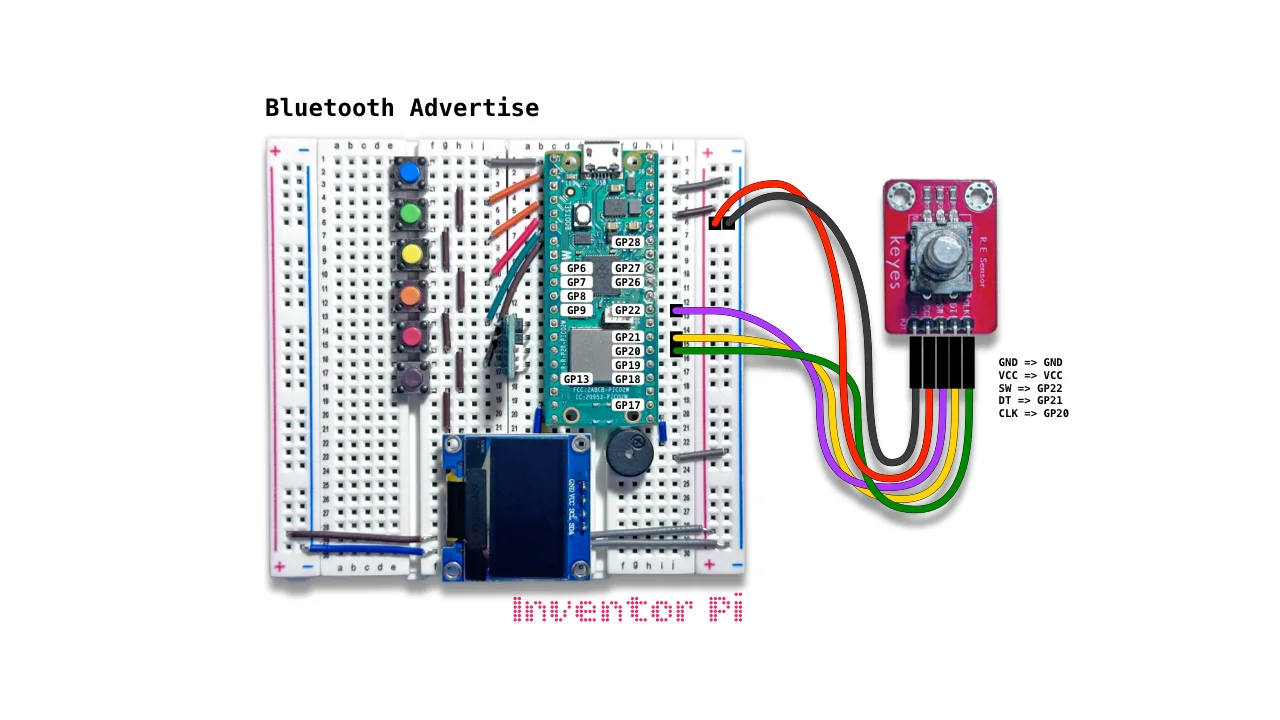
مائیکرو پیتھون کوڈ کی مثال Raspberry Pi Pico 2 W مائکروکنٹرولر پر چل رہا ہے۔ روٹری انکوڈر ماڈیول، ایک آرجیبی ایل ای ڈی اور بریڈ بورڈ پر ایک OLED ڈسپلے ماڈیول (SSD1306) سے منسلک کوئی بھی رنگ بنانے کے لیے ایل ای ڈی کے سرخ، سبز اور نیلے چینلز کو انفرادی طور پر کنٹرول کرنا، ڈسپلے پر ہیکس ویلیو اور آر، جی، بی ویلیوز دکھائیں، اسے BLE ایڈورٹائزنگ ڈیٹا کی سروس UUID میں ایمبیڈ کرکے بلوٹوتھ پر نشر کریں، قریبی Raspberry Pi Pico آلات پر رنگ پڑھنے کے لیے بلوٹوتھ سکیننگ کا استعمال کریں، اور LEDs پر موصولہ رنگ دکھائیں، مطابقت پذیر پیکو ڈیوائسز کا ایک کلسٹر بنائیں
ہم ایل ای ڈی کے سرخ، سبز اور نیلے رنگ کو تبدیل کرنے کے لیے ایک روٹری انکوڈر کا استعمال کرتے ہیں، پھر اس رنگ کو قریبی آلات پر نشر کرتے ہیں، جو اپنے ایل ای ڈی کو ایک ہی رنگ پر سیٹ کرتے ہیں۔. جب ایک آلہ bluetooth_advertise.py چلاتا ہے اور متعدد قریبی آلات bluetooth_scan.py چلاتے ہیں، تو ہم مطابقت پذیر آلات کا نیٹ ورک بنا سکتے ہیں۔. اس طرح روبوٹ کا ایک جھرمٹ بات چیت کر سکتا ہے اور مل کر کام کر سکتا ہے۔.
تھونی میں ایک نئی فائل بنائیں، فائل کا نام bluetooth_advertise.py کے ساتھ. نیچے دیے گئے کوڈ کو اپنی بنائی ہوئی فائل میں کاپی اور پیسٹ کریں۔.
1
2
3
4
5
6
7
8
9
10
11
12
13
14
15
16
17
18
19
20
21
22
23
24
25
26
27
28
29
30
31
32
33
34
35
36
37
38
39
40
41
42
43
44
45
46
47
48
49
50
51
52
53
54
55
56
57
58
59
60
61
62
63
64
65
66
67
68
69
70
71
72
73
74
75
76
77
78
79
80
81
82
83
84
85

print("\nBluetooth Advertise")

# DESCRIPTION

# We use a rotary encoder to change red, green and blue color of the LED, then
# broadcast that color to nearby devices, which set their LEDs to the same color.
# When one device runs bluetooth_advertise.py and multiple nearby devices run
# bluetooth_scan.py, we can create a network of synced devices.
# This is how a cluster of robots can communicate and work together.

# CONNECTIONS REQUIRED

# Connect R E Sensor (KY-040) module
#   Pins: GND => GND, VCC => VCC, SW => GP22, DT => GP21, CLK => GP20

from time import sleep
from oled import OLED
from rgbled import RGBLED
from rotary_encoder import RotaryEncoder
from bluetooth import BLE, UUID
from value_filter import ValueFilter
from ble_helper import advertising_payload

oled = OLED(scl_pin=15, sda_pin=14)
rgbled = RGBLED(red_pin=12, green_pin=11, blue_pin=10)
rotary_encoder = RotaryEncoder(sw_pin=22, dt_pin=21, clk_pin=20, min_val=0, max_val=255)
uuid_filter = ValueFilter()
ble = BLE()
ble.active(True)

rgb = [0, 0, 0]    # array of red, green and blue values, initially set to zero
channel = 0     # 0 is red, 1 is green and 2 is blue

def show_color_values_on_screen():
    lines = [f" HEX: {rgbled.hex}"]
    for i in range(3): lines.append(f"{"->" if channel == i else "  "} {"RGB"[i]}: {rgb[i]}")
    oled.print(*lines)

def set_color():
    rgb[channel] = rotary_encoder.value() # Update color value for current color channel in rgb list
    rgbled.set_color(*rgb)

def advertise_color():
    # Bluetooth advertise broadcasts a message with service UUID (unique id) to any nearby devices listening
    # We will embed the color values inside the service UUID, which a listening device can then extract
    # UUID is a random hexadecimal string with format XXXXXXXX-RR00-GG01-BB02-XXXXXXXXXXXX
    uuid = UUID(f"F62BA79A-{rgb[0]:02X}00-{rgb[1]:02X}01-{rgb[2]:02X}02-FF3591B2FA74") #02X changes number to 2 character hex

    # Set or update BLE advertising payload only when the UUID value changes
    if uuid_filter.did_change(uuid):
        adv_data = advertising_payload(name="Pico2W", services=[uuid])
        ble.gap_advertise(interval_us=500000, adv_data=adv_data) # repeats every 0.5 second

def monitor_button_pressed():
    global channel
    if rotary_encoder.button.value() == 0: # value 0 => button pressed
        channel = (channel + 1) % 3 # switch to next color
        rotary_encoder.update_value(rgb[channel]) # initialize encoder to the new color's value
        while rotary_encoder.button.value() == 0: pass # loop until button is released

try:
    while True:

        # Step 1: Update color to the current encoder value
        set_color()

        # Step 2: Show red, green and blue values on screen
        show_color_values_on_screen()

        # Step 3: Broadcast color value to nearby devices
        advertise_color()

        # Step 4: Monitor if button is pressed. When pressed, switch to the next color channel
        monitor_button_pressed()

        sleep(0.05)

except KeyboardInterrupt:
    print("\nInterrupted by user!")

finally:
    ble.gap_advertise(None)
    ble.active(False)
    oled.reset()
    rgbled.reset()
کسی دوسرے آلے کے کمپیوٹر پر بلوٹوتھ_سکان.پی کے ساتھ ٹیسٹ کرنے کے لیے، تھونی میں ایک نئی فائل بنائیں، جس کا نام bluetooth_scan.py ہے۔. نیچے دیے گئے کوڈ کو اپنی بنائی ہوئی فائل میں کاپی اور پیسٹ کریں۔.
اشارہ
نیا کوڈ اپ لوڈ کیے بغیر، ایک یا زیادہ آلات پر bluetooth_scan.py کو تیزی سے چلانے کے لیے، شروع کرنے کے سیکشن میں بیان کردہ متبادل طریقہ استعمال کریں۔.
1
2
3
4
5
6
7
8
9
10
11
12
13
14
15
16
17
18
19
20
21
22
23
24
25
26
27
28
29
30
31
32
33
34
35
36
37
38
39
40
41
42
43
44
45
46
47
48
49
50
51
52

print("\nBluetooth Scan")

# DESCRIPTION

# We scan bluetooth signals from nearby devices and set the device LED to the
# color received from a device advertising it (using bluetooth_advertise.py).
# When one device runs bluetooth_advertise.py and multiple nearby devices run
# bluetooth_scan.py, we can create a network of synced devices.
# This is how a cluster of robots can communicate and work together.

# CONNECTIONS REQUIRED

# No additional connections are needed

from time import sleep
from oled import OLED
from rgbled import RGBLED
from ble_helper import read_uuid
from bluetooth import BLE

oled = OLED(scl_pin=15, sda_pin=14)
rgbled = RGBLED(red_pin=12, green_pin=11, blue_pin=10)

rgb = [0, 0, 0]

# BLE interrupt request handler gets triggered with advertising data for each BLE device found
def ble_irq(event, data):
    uuid = read_uuid(event, data, name="Pico2W")
    if uuid and uuid[21:23] == "02": # check if substring from char 21 to 23 matches 02 (XXXXXXXX-RR00-GG01-BB02-XXXXXXXXXXXX)
        hex = f"#{uuid[9:11]}{uuid[14:16]}{uuid[19:21]}"
        rgbled.set_color(hex=hex) #set LED color to value received
        oled.print(hex)

# Initialize BLE
ble = BLE()
ble.active(True)
ble.irq(ble_irq) # Setup IRQ (Interrupt Request) handler callback
ble.gap_scan(0, 20000) # Scan at 20ms interval
oled.print("Scanning...")

try:
    while True:
        sleep(5)

except KeyboardInterrupt:
    print("\nInterrupted by user!")

finally:
    ble.gap_scan(None)
    ble.active(False)
    oled.reset()
    rgbled.reset()