蓝牙广播和蓝牙扫描
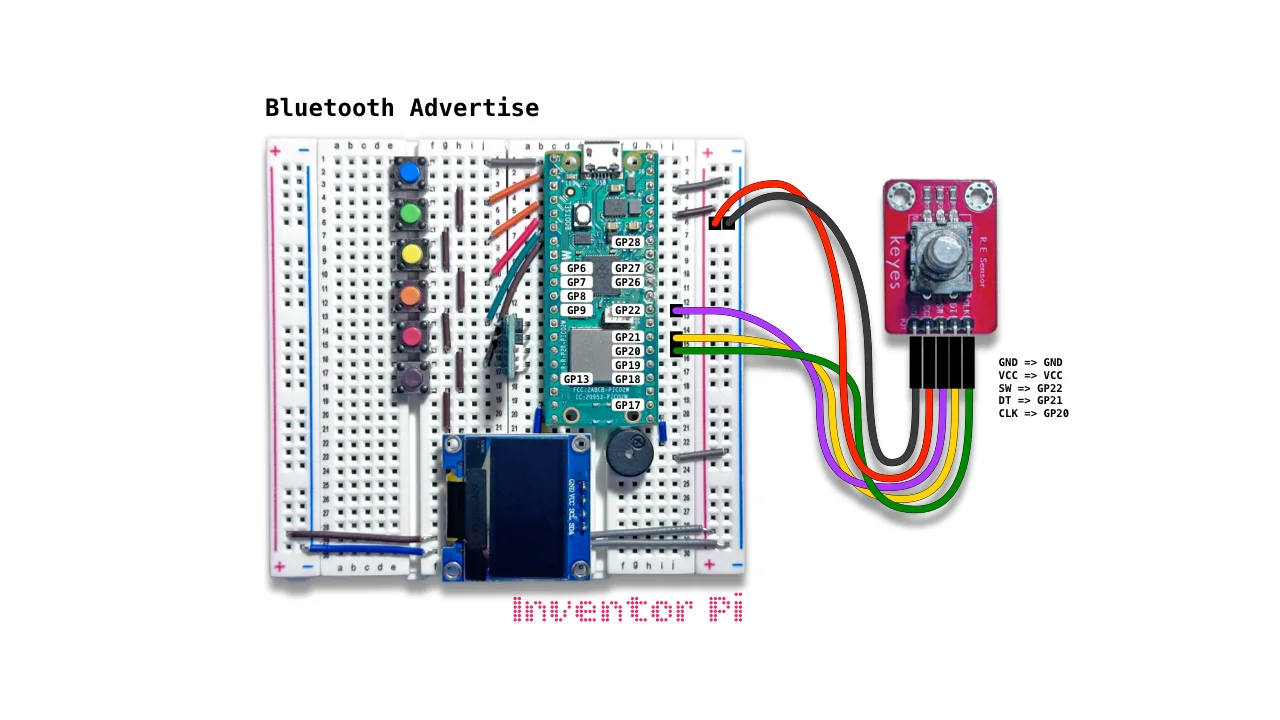
MicroPython 代码示例 运行在 Raspberry Pi Pico 2 W 微控制器上 在面包板上,连接着旋转编码器模块、RGB LED 和 OLED 显示模块 (SSD1306)。 可以单独控制LED的红色、绿色和蓝色通道,从而创造出任何颜色。 在显示屏上显示十六进制值以及R、G、B值。 通过将其嵌入BLE广播数据的服务UUID中,利用蓝牙进行广播。 使用蓝牙扫描读取附近树莓派Pico设备的颜色信息。 并在 LED 上显示接收到的颜色,从而创建一个同步的 Pico 设备集群。
我们使用旋转编码器来改变LED的红、绿、蓝三色,然后将该颜色广播给附近的设备,这些设备会将它们的LED设置为相同的颜色。. 当一台设备运行 bluetooth_advertise.py,而附近多台设备运行 bluetooth_scan.py 时,我们就可以创建一个同步设备网络。. 这就是一群机器人如何进行通信和协同工作的方式。.
在 Thonny 中创建一个名为 bluetooth_advertise.py 的新文件。. 将以下代码复制并粘贴到您创建的文件中。.
1
2
3
4
5
6
7
8
9
10
11
12
13
14
15
16
17
18
19
20
21
22
23
24
25
26
27
28
29
30
31
32
33
34
35
36
37
38
39
40
41
42
43
44
45
46
47
48
49
50
51
52
53
54
55
56
57
58
59
60
61
62
63
64
65
66
67
68
69
70
71
72
73
74
75
76
77
78
79
80
81
82
83
84
85

print("\nBluetooth Advertise")

# DESCRIPTION

# We use a rotary encoder to change red, green and blue color of the LED, then
# broadcast that color to nearby devices, which set their LEDs to the same color.
# When one device runs bluetooth_advertise.py and multiple nearby devices run
# bluetooth_scan.py, we can create a network of synced devices.
# This is how a cluster of robots can communicate and work together.

# CONNECTIONS REQUIRED

# Connect R E Sensor (KY-040) module
#   Pins: GND => GND, VCC => VCC, SW => GP22, DT => GP21, CLK => GP20

from time import sleep
from oled import OLED
from rgbled import RGBLED
from rotary_encoder import RotaryEncoder
from bluetooth import BLE, UUID
from value_filter import ValueFilter
from ble_helper import advertising_payload

oled = OLED(scl_pin=15, sda_pin=14)
rgbled = RGBLED(red_pin=12, green_pin=11, blue_pin=10)
rotary_encoder = RotaryEncoder(sw_pin=22, dt_pin=21, clk_pin=20, min_val=0, max_val=255)
uuid_filter = ValueFilter()
ble = BLE()
ble.active(True)

rgb = [0, 0, 0]    # array of red, green and blue values, initially set to zero
channel = 0     # 0 is red, 1 is green and 2 is blue

def show_color_values_on_screen():
    lines = [f" HEX: {rgbled.hex}"]
    for i in range(3): lines.append(f"{"->" if channel == i else "  "} {"RGB"[i]}: {rgb[i]}")
    oled.print(*lines)

def set_color():
    rgb[channel] = rotary_encoder.value() # Update color value for current color channel in rgb list
    rgbled.set_color(*rgb)

def advertise_color():
    # Bluetooth advertise broadcasts a message with service UUID (unique id) to any nearby devices listening
    # We will embed the color values inside the service UUID, which a listening device can then extract
    # UUID is a random hexadecimal string with format XXXXXXXX-RR00-GG01-BB02-XXXXXXXXXXXX
    uuid = UUID(f"F62BA79A-{rgb[0]:02X}00-{rgb[1]:02X}01-{rgb[2]:02X}02-FF3591B2FA74") #02X changes number to 2 character hex

    # Set or update BLE advertising payload only when the UUID value changes
    if uuid_filter.did_change(uuid):
        adv_data = advertising_payload(name="Pico2W", services=[uuid])
        ble.gap_advertise(interval_us=500000, adv_data=adv_data) # repeats every 0.5 second

def monitor_button_pressed():
    global channel
    if rotary_encoder.button.value() == 0: # value 0 => button pressed
        channel = (channel + 1) % 3 # switch to next color
        rotary_encoder.update_value(rgb[channel]) # initialize encoder to the new color's value
        while rotary_encoder.button.value() == 0: pass # loop until button is released

try:
    while True:

        # Step 1: Update color to the current encoder value
        set_color()

        # Step 2: Show red, green and blue values on screen
        show_color_values_on_screen()

        # Step 3: Broadcast color value to nearby devices
        advertise_color()

        # Step 4: Monitor if button is pressed. When pressed, switch to the next color channel
        monitor_button_pressed()

        sleep(0.05)

except KeyboardInterrupt:
    print("\nInterrupted by user!")

finally:
    ble.gap_advertise(None)
    ble.active(False)
    oled.reset()
    rgbled.reset()
要测试在另一台设备上运行的 bluetooth_scan.py,请在第二台设备的计算机上,在 Thonny 中创建一个名为 bluetooth_scan.py 的新文件。. 将以下代码复制并粘贴到您创建的文件中。.
暗示
要在不上传新代码的情况下,快速在一个或多个设备上运行 bluetooth_scan.py,请使用“入门指南”部分中描述的替代方法。.
1
2
3
4
5
6
7
8
9
10
11
12
13
14
15
16
17
18
19
20
21
22
23
24
25
26
27
28
29
30
31
32
33
34
35
36
37
38
39
40
41
42
43
44
45
46
47
48
49
50
51
52

print("\nBluetooth Scan")

# DESCRIPTION

# We scan bluetooth signals from nearby devices and set the device LED to the
# color received from a device advertising it (using bluetooth_advertise.py).
# When one device runs bluetooth_advertise.py and multiple nearby devices run
# bluetooth_scan.py, we can create a network of synced devices.
# This is how a cluster of robots can communicate and work together.

# CONNECTIONS REQUIRED

# No additional connections are needed

from time import sleep
from oled import OLED
from rgbled import RGBLED
from ble_helper import read_uuid
from bluetooth import BLE

oled = OLED(scl_pin=15, sda_pin=14)
rgbled = RGBLED(red_pin=12, green_pin=11, blue_pin=10)

rgb = [0, 0, 0]

# BLE interrupt request handler gets triggered with advertising data for each BLE device found
def ble_irq(event, data):
    uuid = read_uuid(event, data, name="Pico2W")
    if uuid and uuid[21:23] == "02": # check if substring from char 21 to 23 matches 02 (XXXXXXXX-RR00-GG01-BB02-XXXXXXXXXXXX)
        hex = f"#{uuid[9:11]}{uuid[14:16]}{uuid[19:21]}"
        rgbled.set_color(hex=hex) #set LED color to value received
        oled.print(hex)

# Initialize BLE
ble = BLE()
ble.active(True)
ble.irq(ble_irq) # Setup IRQ (Interrupt Request) handler callback
ble.gap_scan(0, 20000) # Scan at 20ms interval
oled.print("Scanning...")

try:
    while True:
        sleep(5)

except KeyboardInterrupt:
    print("\nInterrupted by user!")

finally:
    ble.gap_scan(None)
    ble.active(False)
    oled.reset()
    rgbled.reset()