Bluetooth Advertise and Bluetooth Scan
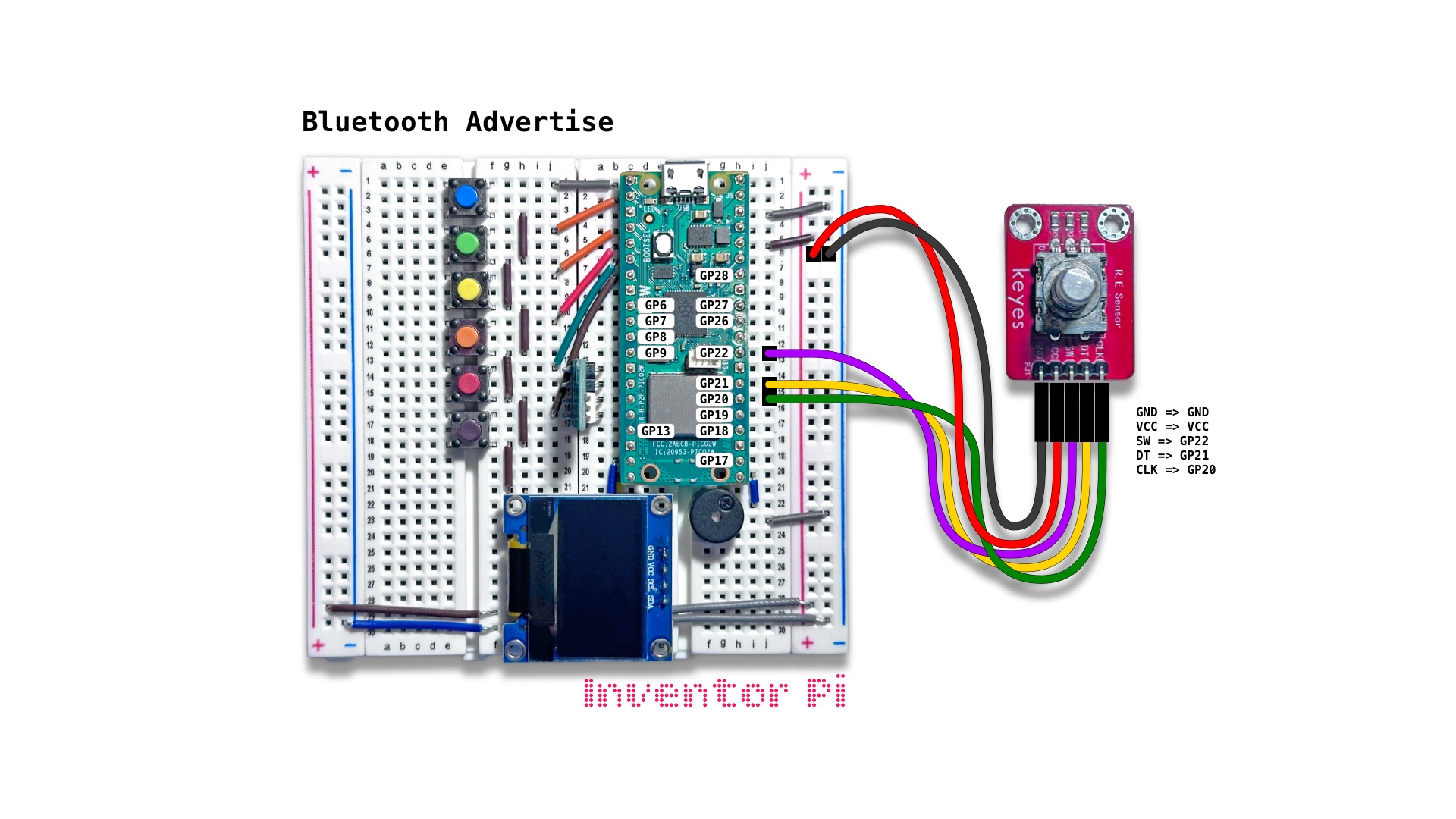
A MicroPython code example running on a Raspberry Pi Pico 2 W microcontroller connected to a rotary encoder module, an RGB LED and an OLED display module (SSD1306) on a breadboard to individually control the red, green and blue channels of the LED to create any color, display the hex value and R, G, B values on the display, broadcast it over bluetooth by embedding it in the service UUID of the BLE advertising data, use bluetooth scanning to read the color on nearby Raspberry Pi Pico devices, and show the received color on LEDs, creating a cluster of synced Pico devices
We use a rotary encoder to change red, green and blue color of the LED, then broadcast that color to nearby devices, which set their LEDs to the same color. When one device runs bluetooth_advertise.py and multiple nearby devices run bluetooth_scan.py, we can create a network of synced devices. This is how a cluster of robots can communicate and work together.
Create a new file in Thonny, with file name bluetooth_advertise.py. Copy and paste the code below into the file you created.
1
2
3
4
5
6
7
8
9
10
11
12
13
14
15
16
17
18
19
20
21
22
23
24
25
26
27
28
29
30
31
32
33
34
35
36
37
38
39
40
41
42
43
44
45
46
47
48
49
50
51
52
53
54
55
56
57
58
59
60
61
62
63
64
65
66
67
68
69
70
71
72
73
74
75
76
77
78
79
80
81
82
83
84
85
print("\nBluetooth Advertise")

# DESCRIPTION

# We use a rotary encoder to change red, green and blue color of the LED, then
# broadcast that color to nearby devices, which set their LEDs to the same color.
# When one device runs bluetooth_advertise.py and multiple nearby devices run
# bluetooth_scan.py, we can create a network of synced devices.
# This is how a cluster of robots can communicate and work together.

# CONNECTIONS REQUIRED

# Connect R E Sensor (KY-040) module
#   Pins: GND => GND, VCC => VCC, SW => GP22, DT => GP21, CLK => GP20

from time import sleep
from oled import OLED
from rgbled import RGBLED
from rotary_encoder import RotaryEncoder
from bluetooth import BLE, UUID
from value_filter import ValueFilter
from ble_helper import advertising_payload

oled = OLED(scl_pin=15, sda_pin=14)
rgbled = RGBLED(red_pin=12, green_pin=11, blue_pin=10)
rotary_encoder = RotaryEncoder(sw_pin=22, dt_pin=21, clk_pin=20, min_val=0, max_val=255)
uuid_filter = ValueFilter()
ble = BLE()
ble.active(True)

rgb = [0, 0, 0]    # array of red, green and blue values, initially set to zero
channel = 0     # 0 is red, 1 is green and 2 is blue

def show_color_values_on_screen():
    lines = [f" HEX: {rgbled.hex}"]
    for i in range(3): lines.append(f"{"->" if channel == i else "  "} {"RGB"[i]}: {rgb[i]}")
    oled.print(*lines)

def set_color():
    rgb[channel] = rotary_encoder.value() # Update color value for current color channel in rgb list
    rgbled.set_color(*rgb)

def advertise_color():
    # Bluetooth advertise broadcasts a message with service UUID (unique id) to any nearby devices listening
    # We will embed the color values inside the service UUID, which a listening device can then extract
    # UUID is a random hexadecimal string with format XXXXXXXX-RR00-GG01-BB02-XXXXXXXXXXXX
    uuid = UUID(f"F62BA79A-{rgb[0]:02X}00-{rgb[1]:02X}01-{rgb[2]:02X}02-FF3591B2FA74") #02X changes number to 2 character hex

    # Set or update BLE advertising payload only when the UUID value changes
    if uuid_filter.did_change(uuid):
        adv_data = advertising_payload(name="Pico2W", services=[uuid])
        ble.gap_advertise(interval_us=500000, adv_data=adv_data) # repeats every 0.5 second

def monitor_button_pressed():
    global channel
    if rotary_encoder.button.value() == 0: # value 0 => button pressed
        channel = (channel + 1) % 3 # switch to next color
        rotary_encoder.update_value(rgb[channel]) # initialize encoder to the new color's value
        while rotary_encoder.button.value() == 0: pass # loop until button is released

try:
    while True:

        # Step 1: Update color to the current encoder value
        set_color()

        # Step 2: Show red, green and blue values on screen
        show_color_values_on_screen()

        # Step 3: Broadcast color value to nearby devices
        advertise_color()

        # Step 4: Monitor if button is pressed. When pressed, switch to the next color channel
        monitor_button_pressed()

        sleep(0.05)

except KeyboardInterrupt:
    print("\nInterrupted by user!")

finally:
    ble.gap_advertise(None)
    ble.active(False)
    oled.reset()
    rgbled.reset()
To test with bluetooth_scan.py running on a different device, on the second device’s computer, create a new file in Thonny, with file name bluetooth_scan.py. Copy and paste the code below into the file you created.
1
2
3
4
5
6
7
8
9
10
11
12
13
14
15
16
17
18
19
20
21
22
23
24
25
26
27
28
29
30
31
32
33
34
35
36
37
38
39
40
41
42
43
44
45
46
47
48
49
50
51
52
print("\nBluetooth Scan")

# DESCRIPTION

# We scan bluetooth signals from nearby devices and set the device LED to the
# color received from a device advertising it (using bluetooth_advertise.py).
# When one device runs bluetooth_advertise.py and multiple nearby devices run
# bluetooth_scan.py, we can create a network of synced devices.
# This is how a cluster of robots can communicate and work together.

# CONNECTIONS REQUIRED

# No additional connections are needed

from time import sleep
from oled import OLED
from rgbled import RGBLED
from ble_helper import read_uuid
from bluetooth import BLE

oled = OLED(scl_pin=15, sda_pin=14)
rgbled = RGBLED(red_pin=12, green_pin=11, blue_pin=10)

rgb = [0, 0, 0]

# BLE interrupt request handler gets triggered with advertising data for each BLE device found
def ble_irq(event, data):
    uuid = read_uuid(event, data, name="Pico2W")
    if uuid and uuid[21:23] == "02": # check if substring from char 21 to 23 matches 02 (XXXXXXXX-RR00-GG01-BB02-XXXXXXXXXXXX)
        hex = f"#{uuid[9:11]}{uuid[14:16]}{uuid[19:21]}"
        rgbled.set_color(hex=hex) #set LED color to value received
        oled.print(hex)

# Initialize BLE
ble = BLE()
ble.active(True)
ble.irq(ble_irq) # Setup IRQ (Interrupt Request) handler callback
ble.gap_scan(0, 20000) # Scan at 20ms interval
oled.print("Scanning...")

try:
    while True:
        sleep(5)

except KeyboardInterrupt:
    print("\nInterrupted by user!")

finally:
    ble.gap_scan(None)
    ble.active(False)
    oled.reset()
    rgbled.reset()