麦克风传感器和旋律
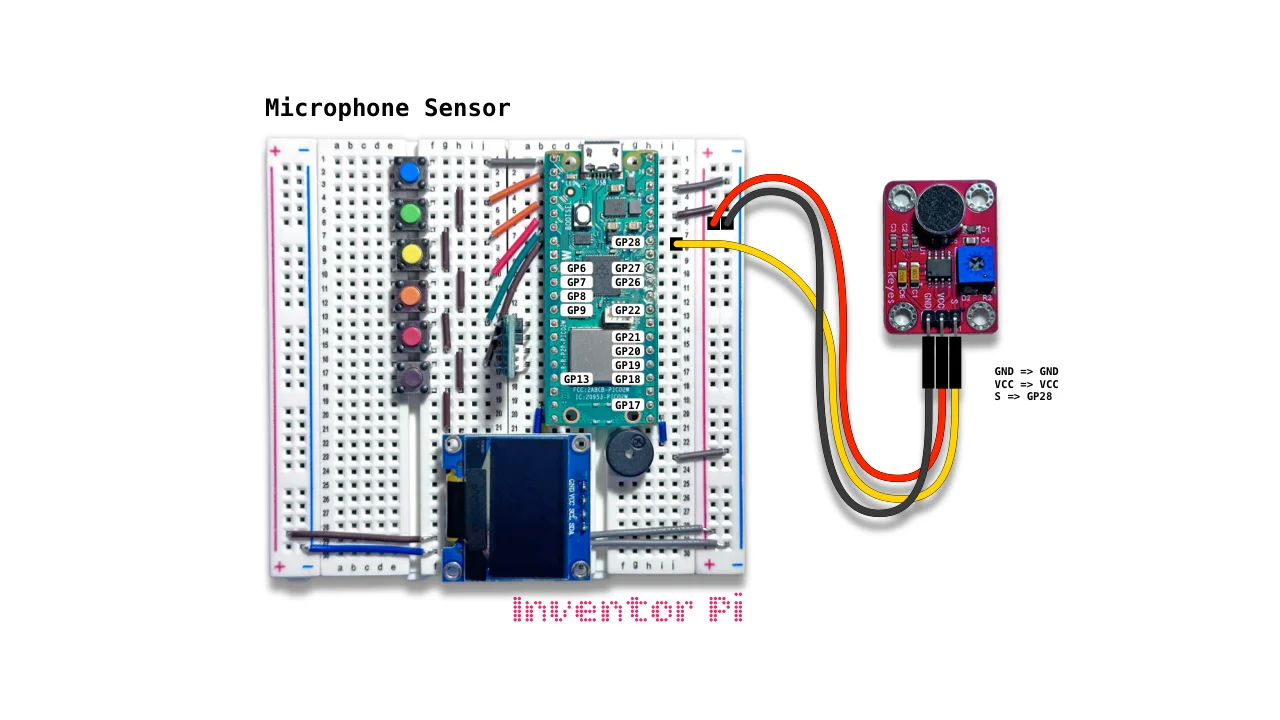
MicroPython 代码示例 运行在 Raspberry Pi Pico 2 W 微控制器上 在面包板上,连接着麦克风声音传感器模块、无源压电蜂鸣器和OLED显示模块(SSD1306)。 重放蜂鸣器上麦克风测量的声音频率,并将其显示在屏幕上。
麦克风声音传感器利用内置麦克风和板载处理电路,将环境声波转换为电信号。. 声波在空气中传播,并撞击模块麦克风内部的微型柔性振膜。. 隔膜的波动会产生与声音频率和音量相匹配的电信号。. 运行此脚本,同时在另一台设备上运行 melody.py。. 将两个设备靠近,并将麦克风直接放在播放旋律的设备的蜂鸣器上方。. 如果房间不太吵闹,它应该至少能拾取到一些音符。.
暗示
要在其他设备上快速运行 melody.py,而无需上传新代码,请使用“入门指南”部分中描述的替代方法。.
在 Thonny 中创建一个名为 microphone_sensor.py 的新文件。. 将以下代码复制并粘贴到您创建的文件中。.
1
2
3
4
5
6
7
8
9
10
11
12
13
14
15
16
17
18
19
20
21
22
23
24
25
26
27
28
29
30
31
32
33
34
35
36
37
38
39
40
41
42
43
44
45
46
47
48
49
50
51
52
53
54
55
56
57
58

print("\nMicrophone Sensor")

# DESCRIPTION

# A microphone sound sensor converts environmental sound waves into electrical
# signals using a built-in microphone and an onboard processing circuit. Sound waves
# move through the air and hit a tiny flexible diaphragm inside the module's microphone.
# The fluctuations in the diaphragm create electrical signals that match the sound
# frequency and volume. Run this script, and simultaneously run melody.py on a different
# device. Bring the devices close to each other and place the microphone directly on top of
# the buzzer of the device playing the melody. If the room is not very noisy, it should pick
# up at least some of the notes.

# CONNECTIONS REQUIRED

# Connect Microphone Sensor (KY-037) module
# (it includes a cylindrical mic with black circular pad on top)
#   Pins: GND => GND, VCC => VCC, S => GP28

from time import sleep
from machine import Pin, ADC
from oled import OLED
from buzzer import Buzzer
from value_filter import ValueFilter
from helper import interpolate

mic_sensor = ADC(Pin(28))
value_filter = ValueFilter(filter="SMA", window_size=5)
oled = OLED(scl_pin=15, sda_pin=14)
buzzer = Buzzer(pwm_pin=16)

sensor_min = 8000
sensor_max = 13000
frequency = 0

try:
    while True:
        # Use Simple Moving Average filter to smooth out readings
        sensor_value = value_filter.update(mic_sensor.read_u16())

        # Convert sensor_value to frequency when reading is greater than sensor_min
        # and buzzer is not playing (frequency == 0).
        # If buzzer is already playing, don't change frequency.
        # If sensor_value drops below 75% of sensor_min, reset frequency to stop buzzer
        if sensor_value < sensor_min * 0.75: frequency = 0
        elif sensor_value >= sensor_min and frequency == 0:
            frequency = interpolate(sensor_value, sensor_min, sensor_max, 200, 600)

        oled.print(f"Raw: {sensor_value:.0f}", f"Freq: {frequency}")
        buzzer.play_tone(frequency, 0)
        sleep(0.02)

except KeyboardInterrupt:
    print("\nInterrupted by user!")

finally:
    oled.reset()
    buzzer.reset()
要测试 melody.py 在不同设备上运行的情况,请在连接到第二个设备的计算机上运行上述旋律实验中的 melody.py 文件。.