Melodia
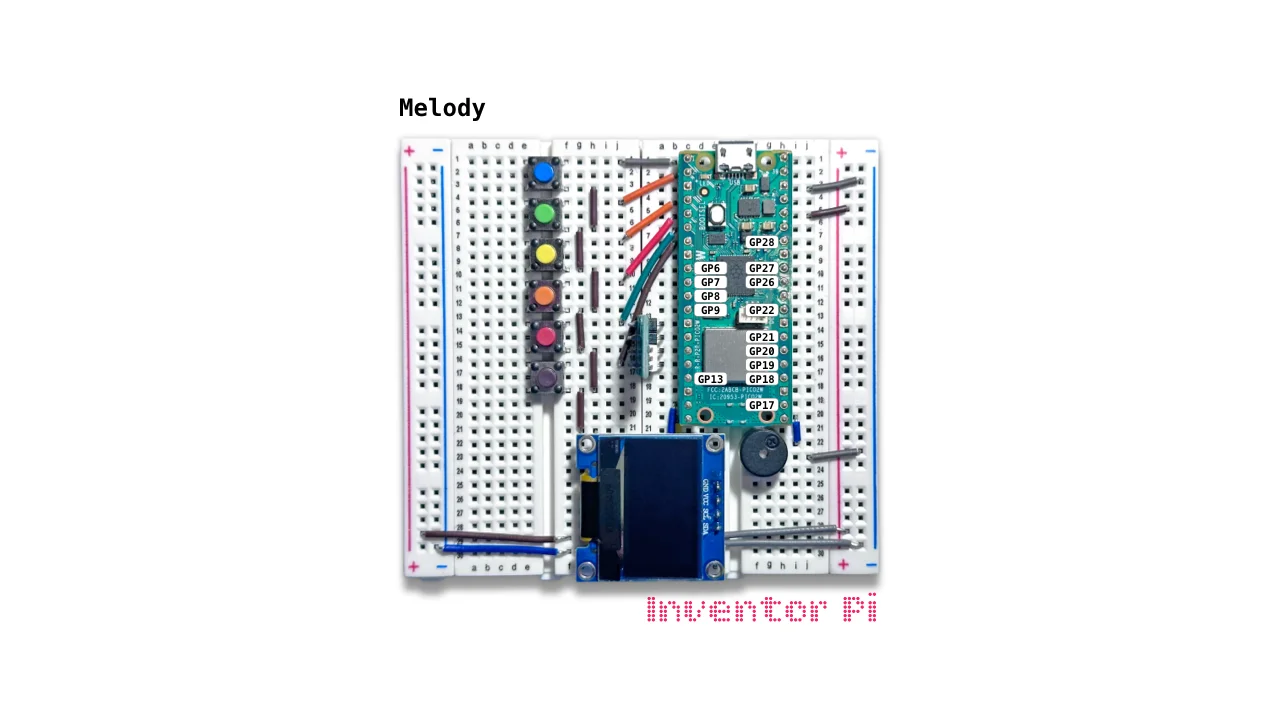
Um exemplo de código MicroPython executado em um microcontrolador Raspberry Pi Pico de 2 W Conectado a um buzzer piezo passivo, um módulo LED RGB e um módulo de display OLED (SSD1306) em uma placa de ensaio Tocar uma melodia de notas musicais na campainha com o texto correspondente exibido no visor
Um buzzer piezoelétrico funciona utilizando o efeito piezoelétrico para converter sinais elétricos em vibrações mecânicas rápidas que criam ondas sonoras. Neste script, enviamos frequências diferentes para um buzzer piezoelétrico para reproduzir notas musicais diferentes.
Para tocar uma nota em um intervalo, executamos o seguinte comando:
1
2
3
4
5
6
7
8

from time import sleep
from buzzer import Buzzer

buzzer = Buzzer(pwm_pin=16)

while True:
    buzzer.play_note("C4")
    sleep(3) # wait 3 seconds, then repeat
Para adicionar uma função, usamos def. A função abaixo adiciona um efeito cintilante, alternando entre uma luz branca fraca e a luz LED desligada, repetindo o processo várias vezes.
1
2
3
4
5
6

def twinkle(seconds):
    for i in range(seconds * 5):
        rgbled.set_color(w=100)
        sleep(0.01)
        rgbled.reset()
        sleep(0.19)
Para reproduzir uma melodia completa, crie um novo arquivo no Thonny com o nome melody.py. Copie e cole o código abaixo no arquivo que você criou.
1
2
3
4
5
6
7
8
9
10
11
12
13
14
15
16
17
18
19
20
21
22
23
24
25
26
27
28
29
30
31
32
33
34
35
36
37
38
39
40
41
42
43
44
45
46
47
48
49
50
51
52
53
54
55
56
57
58
59
60
61
62
63
64
65
66

print("\nMelody")

# DESCRIPTION

# A piezo buzzer works by using the piezoelectric effect to turn electrical signals
# into fast mechanical vibrations that create sound waves. In this script,
# we send different frequencies to a piezo buzzer to play different musical notes.

# CONNECTIONS REQUIRED

# No additional connections are needed

from time import sleep
from buzzer import Buzzer
from oled import OLED
from rgbled import RGBLED

oled = OLED(scl_pin=15, sda_pin=14)
buzzer = Buzzer(pwm_pin=16)
rgbled = RGBLED(red_pin=12, green_pin=11, blue_pin=10)
buzzer.melody_note_gap = 0.5

def twinkle(seconds):
    for i in range(seconds * 5):
        rgbled.set_color(w=100)
        sleep(0.01)
        rgbled.reset()
        sleep(0.19)

try:
    while True:

        twinkle(0.6)
        oled.print("Twinkle,", "twinkle,", "little", "star,")
        buzzer.play_melody("C4", "C4", "G4", "G4", "A4", "A4", "G4 0.6")

        twinkle(0.6)
        oled.print("Yes, sir,", "Yes, sir,", "three bags", "fulllllll!")
        buzzer.play_melody("F4", "F4", "E4", "E4", "D4", "D4", "C4 0.6")

        twinkle(0.6)
        oled.print("Up above the", "world so high,")
        buzzer.play_melody("G4", "G4", "F4", "F4", "E4", "E4", "D4 0.6")

        twinkle(0.6)
        oled.print("Like a", "diamond", "in the sky.")
        buzzer.play_melody("G4", "G4", "F4", "F4", "E4", "E4", "D4 0.6")

        twinkle(0.6)
        oled.print("Ba, ba,", "black sheep,", "have you", "any wool?")
        buzzer.play_melody("C4", "C4", "G4", "G4", "A4", "A4", "G4 0.6")

        twinkle(0.6)
        oled.print("Aitch I jay kay", "el em en o pee")
        buzzer.play_melody("F4", "F4", "E4", "E4", "D4", "D4", "C4 0.6")

        oled.reset()
        sleep(3)

except KeyboardInterrupt:
    print("\nInterrupted by user!")

finally:
    oled.reset()
    rgbled.reset()
    buzzer.reset()