Melodia
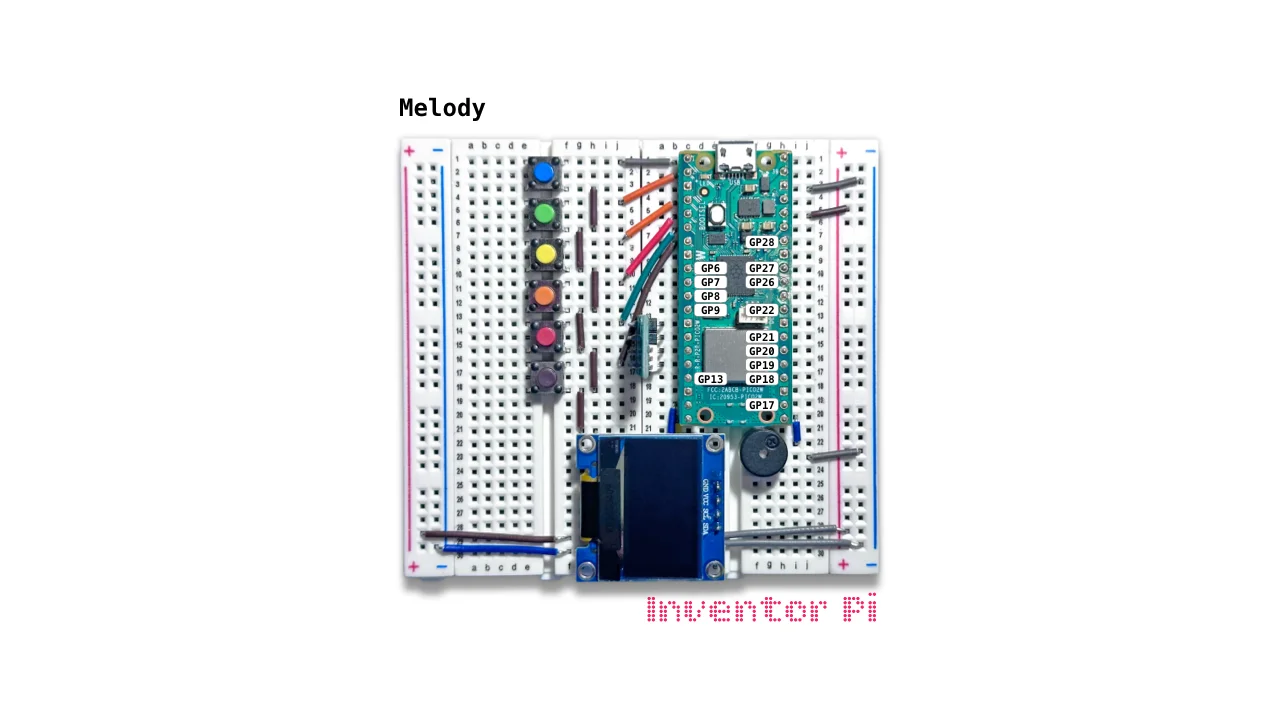
Un esempio di codice MicroPython in esecuzione su un microcontrollore Raspberry Pi Pico 2 W collegato a un buzzer piezoelettrico passivo, un modulo LED RGB e un modulo display OLED (SSD1306) su una breadboard per riprodurre una melodia di note musicali sul buzzer con il testo corrispondente visualizzato sul display
Un buzzer piezoelettrico funziona sfruttando l'effetto piezoelettrico per trasformare i segnali elettrici in rapide vibrazioni meccaniche che creano onde sonore. In questo script, inviamo diverse frequenze a un buzzer piezoelettrico per riprodurre diverse note musicali.
Per riprodurre una nota a intervalli, eseguiamo il seguente comando:
1
2
3
4
5
6
7
8

from time import sleep
from buzzer import Buzzer

buzzer = Buzzer(pwm_pin=16)

while True:
    buzzer.play_note("C4")
    sleep(3) # wait 3 seconds, then repeat
Per aggiungere una funzione, usiamo def. La funzione seguente aggiunge un effetto scintillante accendendo il LED con una luce bianca tenue e poi spegnendolo, ripetendo l'operazione più volte.
1
2
3
4
5
6

def twinkle(seconds):
    for i in range(seconds * 5):
        rgbled.set_color(w=100)
        sleep(0.01)
        rgbled.reset()
        sleep(0.19)
Per riprodurre un'intera melodia, crea un nuovo file in Thonny con il nome melody.py. Copia e incolla il codice seguente nel file che hai creato.
1
2
3
4
5
6
7
8
9
10
11
12
13
14
15
16
17
18
19
20
21
22
23
24
25
26
27
28
29
30
31
32
33
34
35
36
37
38
39
40
41
42
43
44
45
46
47
48
49
50
51
52
53
54
55
56
57
58
59
60
61
62
63
64
65
66

print("\nMelody")

# DESCRIPTION

# A piezo buzzer works by using the piezoelectric effect to turn electrical signals
# into fast mechanical vibrations that create sound waves. In this script,
# we send different frequencies to a piezo buzzer to play different musical notes.

# CONNECTIONS REQUIRED

# No additional connections are needed

from time import sleep
from buzzer import Buzzer
from oled import OLED
from rgbled import RGBLED

oled = OLED(scl_pin=15, sda_pin=14)
buzzer = Buzzer(pwm_pin=16)
rgbled = RGBLED(red_pin=12, green_pin=11, blue_pin=10)
buzzer.melody_note_gap = 0.5

def twinkle(seconds):
    for i in range(seconds * 5):
        rgbled.set_color(w=100)
        sleep(0.01)
        rgbled.reset()
        sleep(0.19)

try:
    while True:

        twinkle(0.6)
        oled.print("Twinkle,", "twinkle,", "little", "star,")
        buzzer.play_melody("C4", "C4", "G4", "G4", "A4", "A4", "G4 0.6")

        twinkle(0.6)
        oled.print("Yes, sir,", "Yes, sir,", "three bags", "fulllllll!")
        buzzer.play_melody("F4", "F4", "E4", "E4", "D4", "D4", "C4 0.6")

        twinkle(0.6)
        oled.print("Up above the", "world so high,")
        buzzer.play_melody("G4", "G4", "F4", "F4", "E4", "E4", "D4 0.6")

        twinkle(0.6)
        oled.print("Like a", "diamond", "in the sky.")
        buzzer.play_melody("G4", "G4", "F4", "F4", "E4", "E4", "D4 0.6")

        twinkle(0.6)
        oled.print("Ba, ba,", "black sheep,", "have you", "any wool?")
        buzzer.play_melody("C4", "C4", "G4", "G4", "A4", "A4", "G4 0.6")

        twinkle(0.6)
        oled.print("Aitch I jay kay", "el em en o pee")
        buzzer.play_melody("F4", "F4", "E4", "E4", "D4", "D4", "C4 0.6")

        oled.reset()
        sleep(3)

except KeyboardInterrupt:
    print("\nInterrupted by user!")

finally:
    oled.reset()
    rgbled.reset()
    buzzer.reset()