Microphone Sensor and Melody
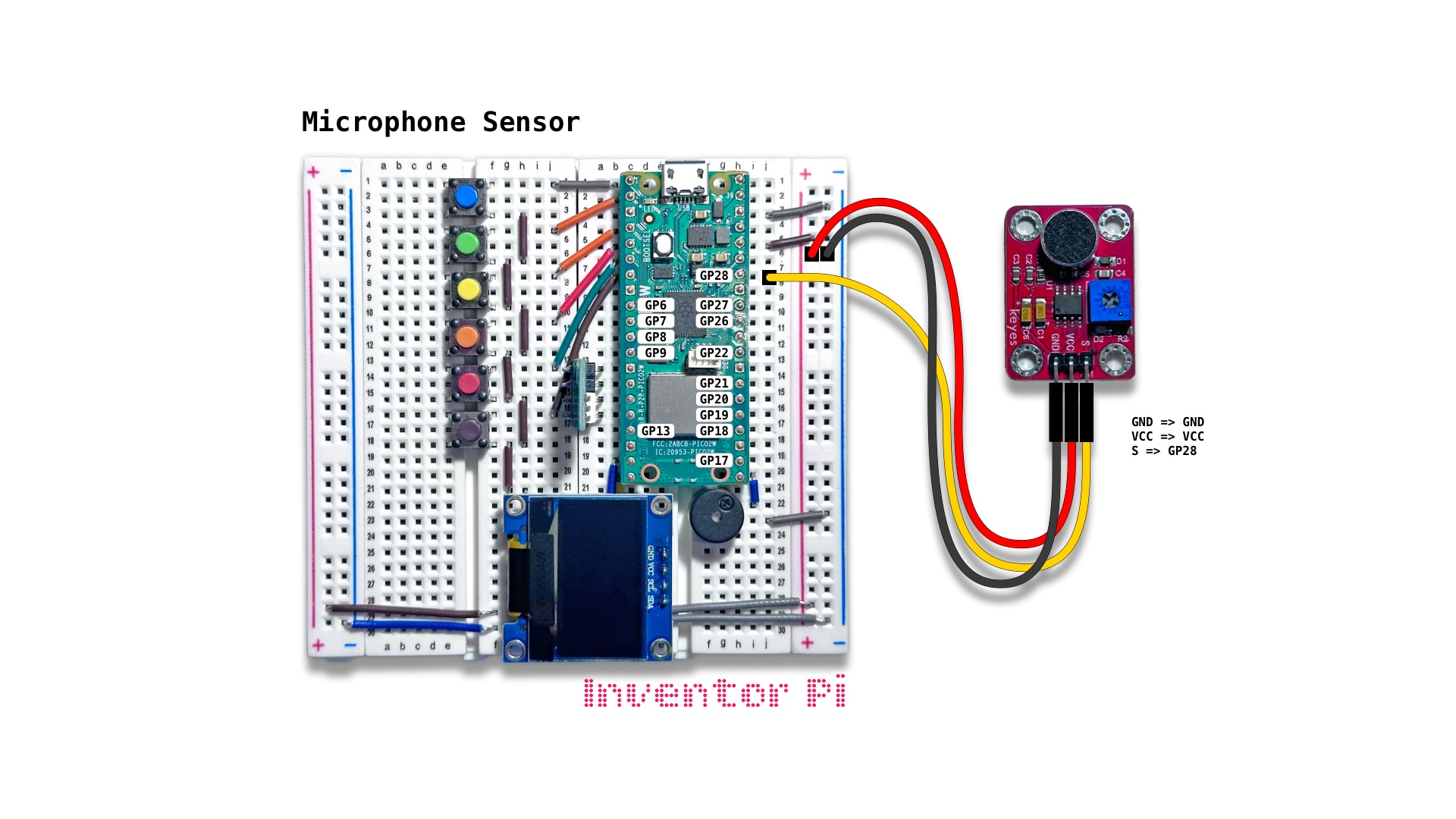
A MicroPython code example running on a Raspberry Pi Pico 2 W microcontroller connected to a microphone sound sensor module, a passive piezo buzzer and an OLED display module (SSD1306) on a breadboard to replay the sound frequencies measured by the microphone on the buzzer and display them on the display
A microphone sound sensor converts environmental sound waves into electrical signals using a built-in microphone and an onboard processing circuit. Sound waves move through the air and hit a tiny flexible diaphragm inside the module’s microphone. The fluctuations in the diaphragm create electrical signals that match the sound frequency and volume. Run this script, and simultaneously run melody.py on a different device. Bring the devices close to each other and place the microphone directly on top of the buzzer of the device playing the melody. If the room is not very noisy, it should pick up at least some of the notes.
Create a new file in Thonny, with file name microphone_sensor.py. Copy and paste the code below into the file you created.
1
2
3
4
5
6
7
8
9
10
11
12
13
14
15
16
17
18
19
20
21
22
23
24
25
26
27
28
29
30
31
32
33
34
35
36
37
38
39
40
41
42
43
44
45
46
47
48
49
50
51
52
53
54
55
56
57
58
print("\nMicrophone Sensor")

# DESCRIPTION

# A microphone sound sensor converts environmental sound waves into electrical
# signals using a built-in microphone and an onboard processing circuit. Sound waves
# move through the air and hit a tiny flexible diaphragm inside the module's microphone.
# The fluctuations in the diaphragm create electrical signals that match the sound
# frequency and volume. Run this script, and simultaneously run melody.py on a different
# device. Bring the devices close to each other and place the microphone directly on top of
# the buzzer of the device playing the melody. If the room is not very noisy, it should pick
# up at least some of the notes.

# CONNECTIONS REQUIRED

# Connect Microphone Sensor (KY-037) module
# (it includes a cylindrical mic with black circular pad on top)
#   Pins: GND => GND, VCC => VCC, S => GP28

from time import sleep
from machine import Pin, ADC
from oled import OLED
from buzzer import Buzzer
from value_filter import ValueFilter
from helper import interpolate

mic_sensor = ADC(Pin(28))
value_filter = ValueFilter(filter="SMA", window_size=5)
oled = OLED(scl_pin=15, sda_pin=14)
buzzer = Buzzer(pwm_pin=16)

sensor_min = 8000
sensor_max = 13000
frequency = 0

try:
    while True:
        # Use Simple Moving Average filter to smooth out readings
        sensor_value = value_filter.update(mic_sensor.read_u16())

        # Convert sensor_value to frequency when reading is greater than sensor_min
        # and buzzer is not playing (frequency == 0).
        # If buzzer is already playing, don't change frequency.
        # If sensor_value drops below 75% of sensor_min, reset frequency to stop buzzer
        if sensor_value < sensor_min * 0.75: frequency = 0
        elif sensor_value >= sensor_min and frequency == 0:
            frequency = interpolate(sensor_value, sensor_min, sensor_max, 200, 600)

        oled.print(f"Raw: {sensor_value:.0f}", f"Freq: {frequency}")
        buzzer.play_tone(frequency, 0)
        sleep(0.02)

except KeyboardInterrupt:
    print("\nInterrupted by user!")

finally:
    oled.reset()
    buzzer.reset()
To test with melody.py running on a different device, on the second device’s computer, run the melody.py file from the Melody experiment above.