Sensore del microfono e melodia
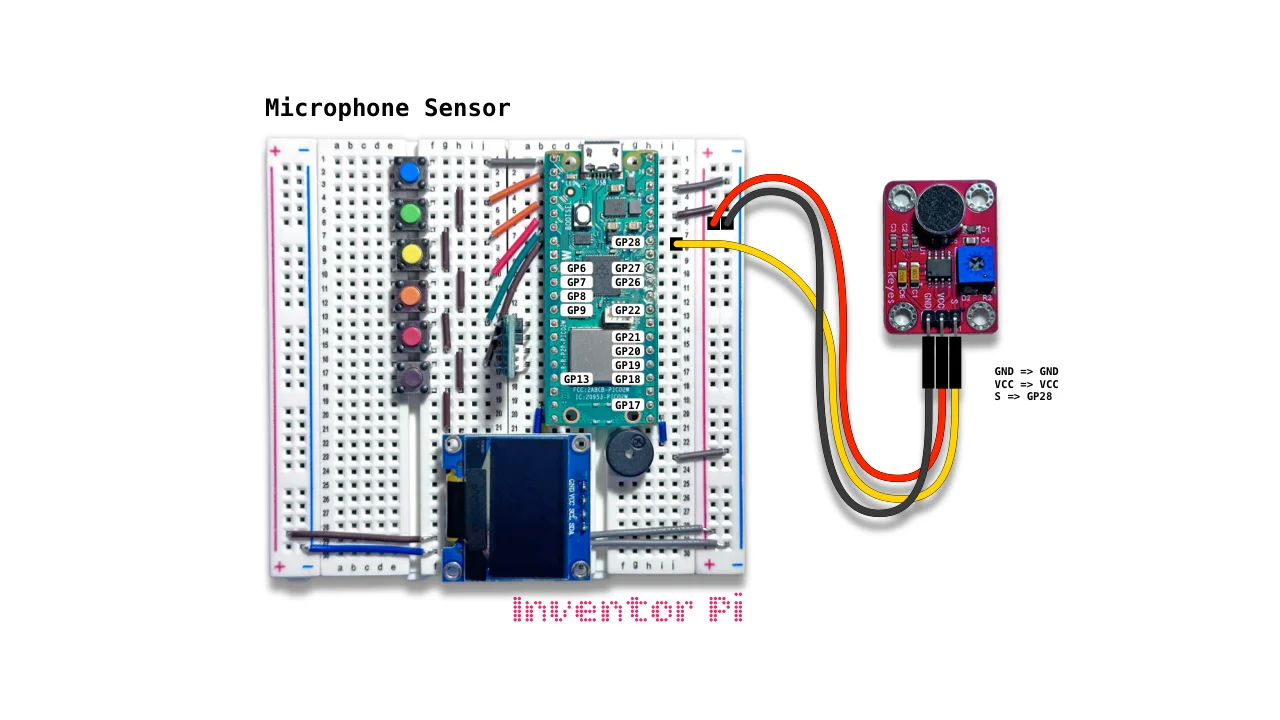
Un esempio di codice MicroPython in esecuzione su un microcontrollore Raspberry Pi Pico 2 W collegato a un modulo sensore di suono microfonico, un buzzer piezoelettrico passivo e un modulo display OLED (SSD1306) su una breadboard per riprodurre le frequenze sonore misurate dal microfono sul buzzer e visualizzarle sul display
Un sensore sonoro a microfono converte le onde sonore ambientali in segnali elettrici utilizzando un microfono integrato e un circuito di elaborazione a bordo. Le onde sonore si propagano nell'aria e colpiscono un minuscolo diaframma flessibile all'interno del microfono del modulo. Le fluttuazioni del diaframma creano segnali elettrici che corrispondono alla frequenza e al volume del suono. Esegui questo script e contemporaneamente esegui melody.py su un dispositivo diverso. Avvicina i dispositivi e posiziona il microfono direttamente sopra il buzzer del dispositivo che riproduce la melodia. Se la stanza non è molto rumorosa, dovrebbe captare almeno alcune delle note.
Suggerimento
Per eseguire rapidamente melody.py su un altro dispositivo, senza caricare nuovo codice, utilizzare il metodo alternativo descritto nella sezione "Per iniziare"..
Crea un nuovo file in Thonny, con il nome microphone_sensor.py. Copia e incolla il codice seguente nel file che hai creato.
1
2
3
4
5
6
7
8
9
10
11
12
13
14
15
16
17
18
19
20
21
22
23
24
25
26
27
28
29
30
31
32
33
34
35
36
37
38
39
40
41
42
43
44
45
46
47
48
49
50
51
52
53
54
55
56
57
58

print("\nMicrophone Sensor")

# DESCRIPTION

# A microphone sound sensor converts environmental sound waves into electrical
# signals using a built-in microphone and an onboard processing circuit. Sound waves
# move through the air and hit a tiny flexible diaphragm inside the module's microphone.
# The fluctuations in the diaphragm create electrical signals that match the sound
# frequency and volume. Run this script, and simultaneously run melody.py on a different
# device. Bring the devices close to each other and place the microphone directly on top of
# the buzzer of the device playing the melody. If the room is not very noisy, it should pick
# up at least some of the notes.

# CONNECTIONS REQUIRED

# Connect Microphone Sensor (KY-037) module
# (it includes a cylindrical mic with black circular pad on top)
#   Pins: GND => GND, VCC => VCC, S => GP28

from time import sleep
from machine import Pin, ADC
from oled import OLED
from buzzer import Buzzer
from value_filter import ValueFilter
from helper import interpolate

mic_sensor = ADC(Pin(28))
value_filter = ValueFilter(filter="SMA", window_size=5)
oled = OLED(scl_pin=15, sda_pin=14)
buzzer = Buzzer(pwm_pin=16)

sensor_min = 8000
sensor_max = 13000
frequency = 0

try:
    while True:
        # Use Simple Moving Average filter to smooth out readings
        sensor_value = value_filter.update(mic_sensor.read_u16())

        # Convert sensor_value to frequency when reading is greater than sensor_min
        # and buzzer is not playing (frequency == 0).
        # If buzzer is already playing, don't change frequency.
        # If sensor_value drops below 75% of sensor_min, reset frequency to stop buzzer
        if sensor_value < sensor_min * 0.75: frequency = 0
        elif sensor_value >= sensor_min and frequency == 0:
            frequency = interpolate(sensor_value, sensor_min, sensor_max, 200, 600)

        oled.print(f"Raw: {sensor_value:.0f}", f"Freq: {frequency}")
        buzzer.play_tone(frequency, 0)
        sleep(0.02)

except KeyboardInterrupt:
    print("\nInterrupted by user!")

finally:
    oled.reset()
    buzzer.reset()
Per testare melody.py su un dispositivo diverso, esegui il file melody.py dell'esperimento Melodia descritto sopra su un computer collegato al secondo dispositivo.